Registering and Unregistering a License Key
SmartSignage Scheduler displays the following dialog box at startup and at regular intervals if a license key has not been registered.
This message will disappear after registering the license key.
Once a license key is registered, this message will no longer appear.
Important
A license key must be registered for each PC.
A license key registered on one PC cannot be used on another PC.
To use it on a different PC, you must unregister it first.
Registering a License Key
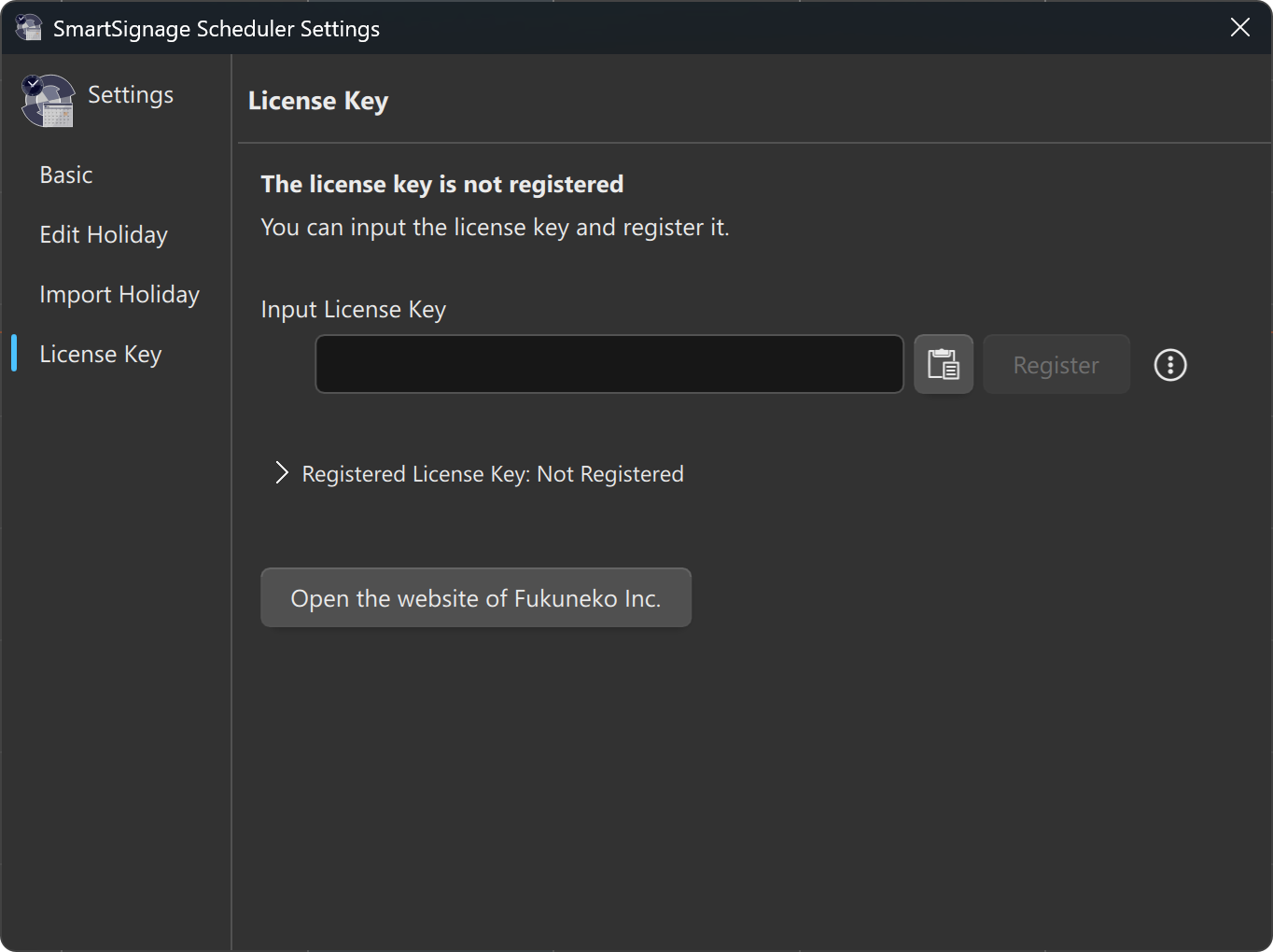
From the menu, select [Edit] » [Settings…], then choose License Key from the list on the left side of the window. The screen will appear as shown in Figure 1.
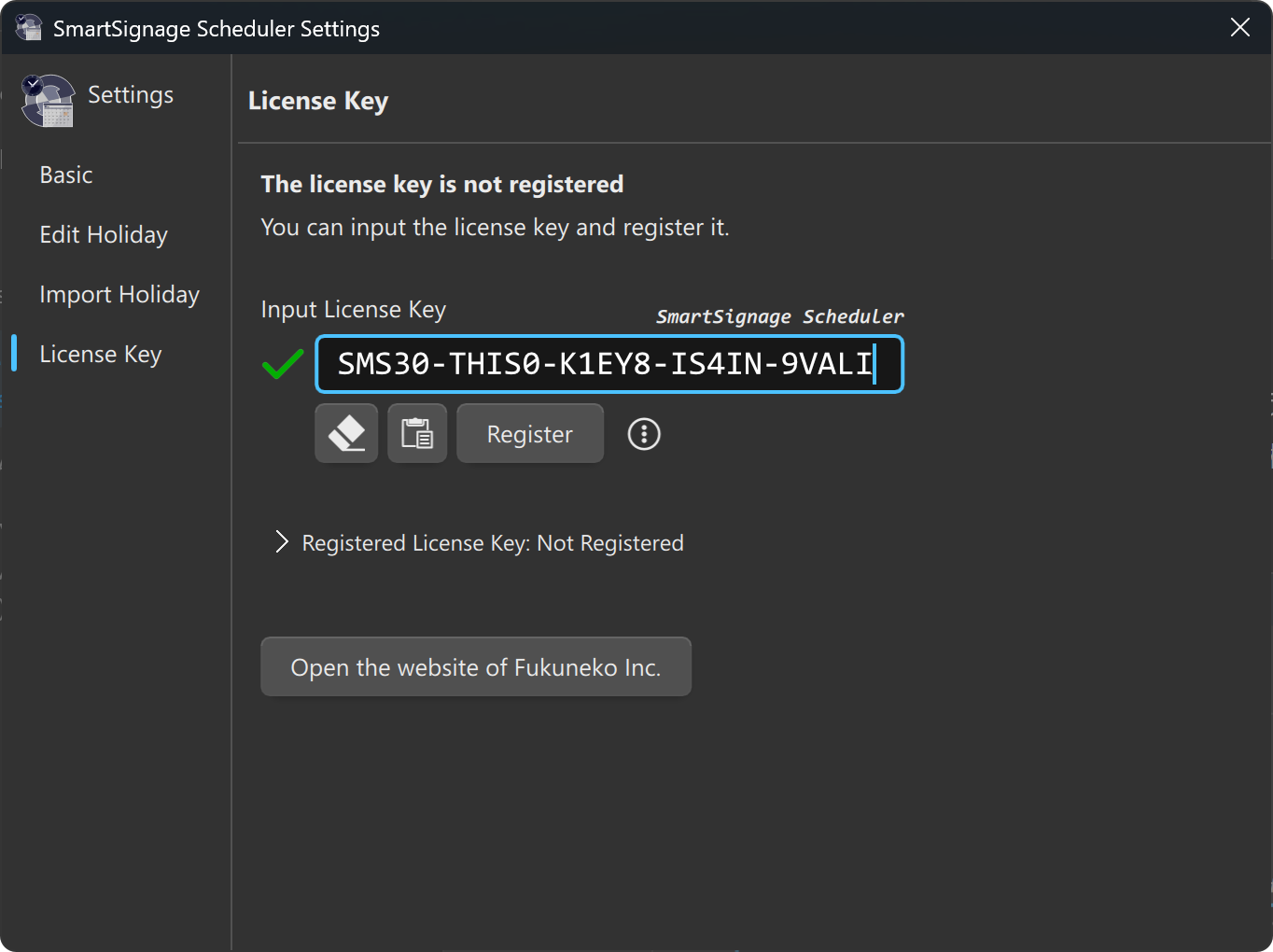
Enter your license key in the input field under Input License Key. Once all 25 characters of the license key have been entered, authentication is performed automatically. If authentication succeeds, a icon appears on the left, and SmartSignage Scheduler is displayed in the upper-right corner.
Hint
If a license key is copied to the clipboard, the button appears.
Clicking this button pastes the clipboard contents into the input field.
When the input field contains text, the button appears. Clicking this button clears the input field.
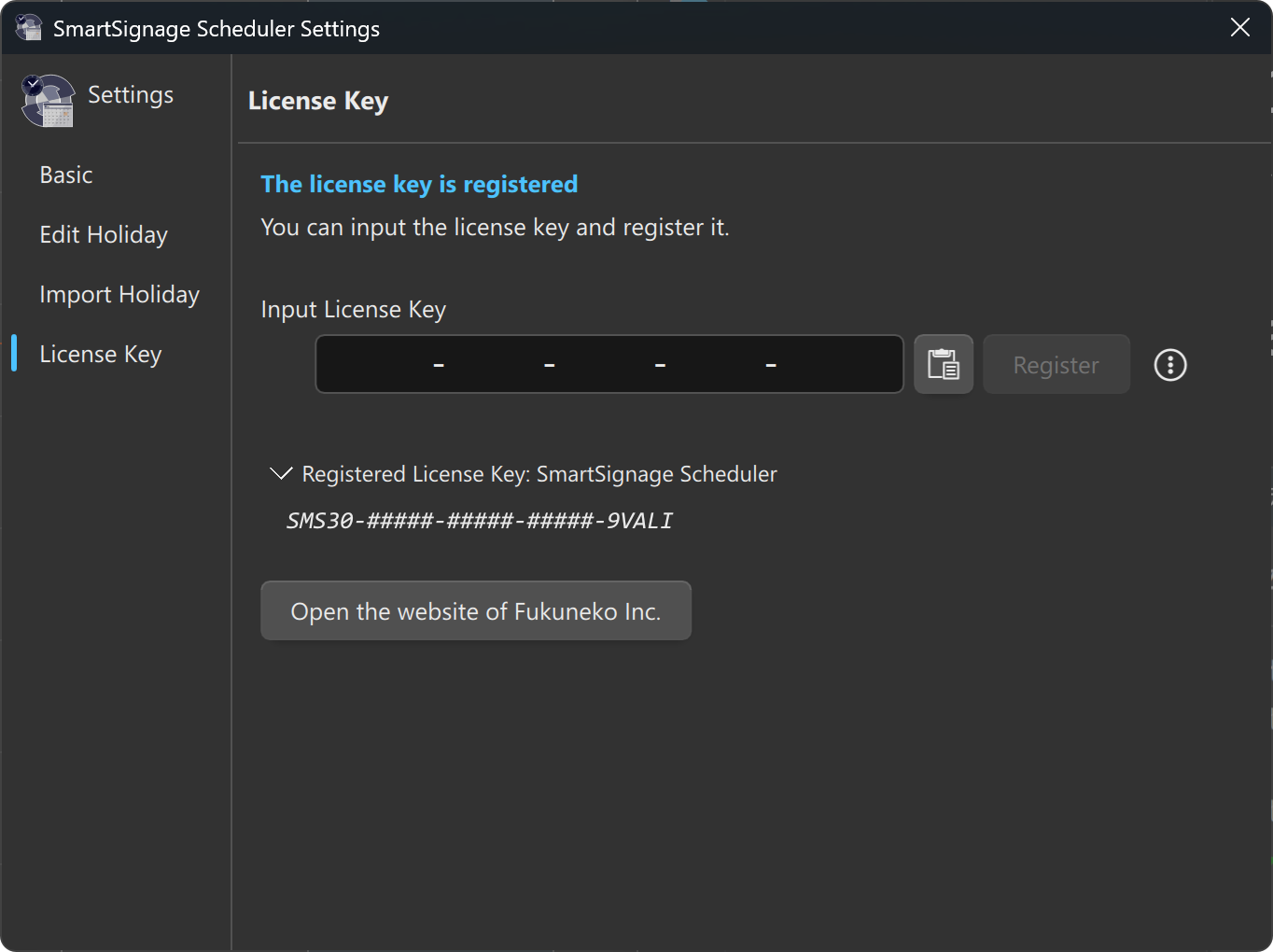
Click the Register button to complete the registration. After registration, SmartSignage Scheduler appears to the right of Registered License Key:, and the license key is shown with part of it masked using # characters.
Registration Failure
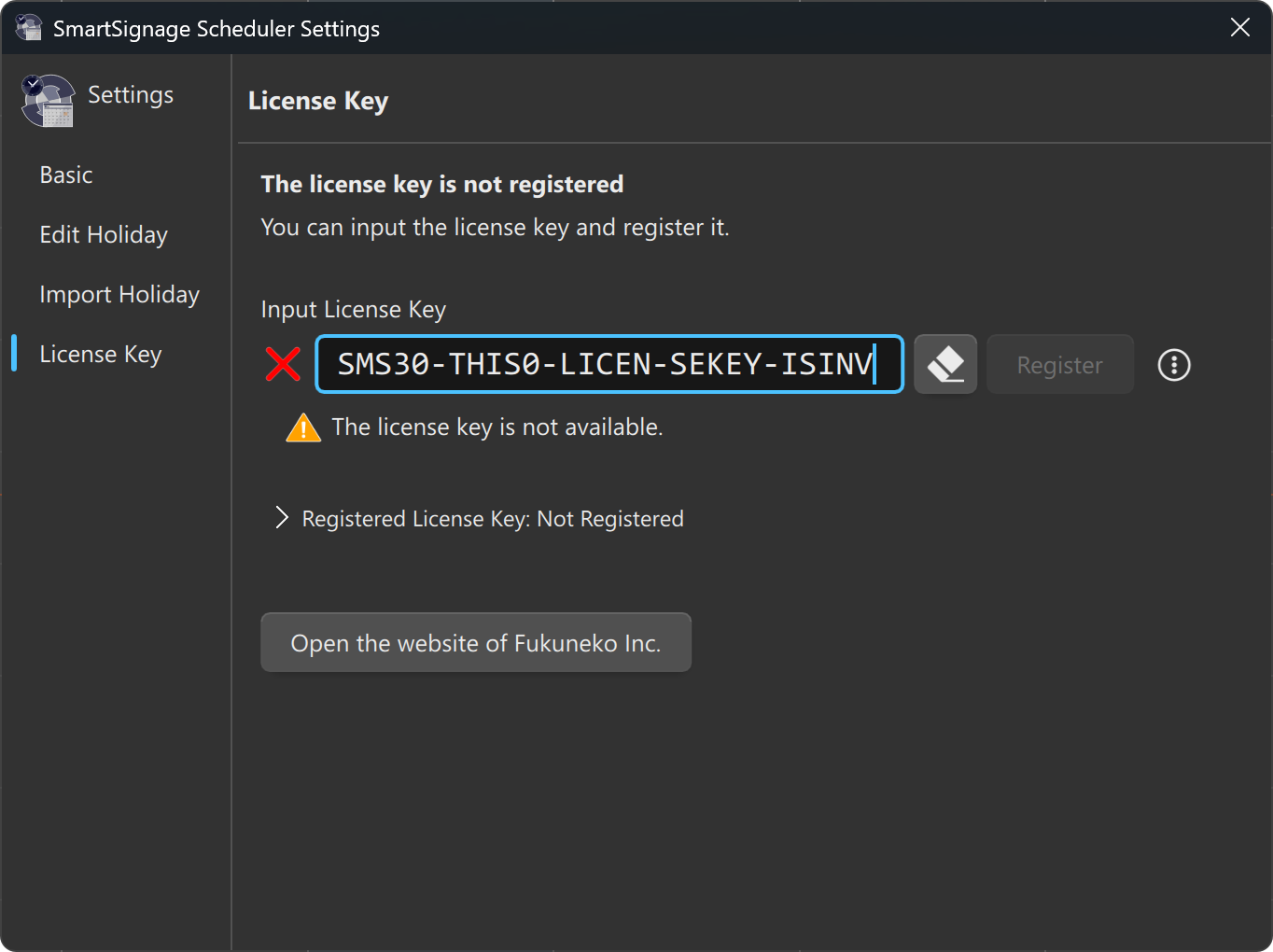
If the license key is entered incorrectly, a icon appears to the left of the input field (Figure 4). The same icon is also shown if the license key has already been registered on another PC.
Network Error
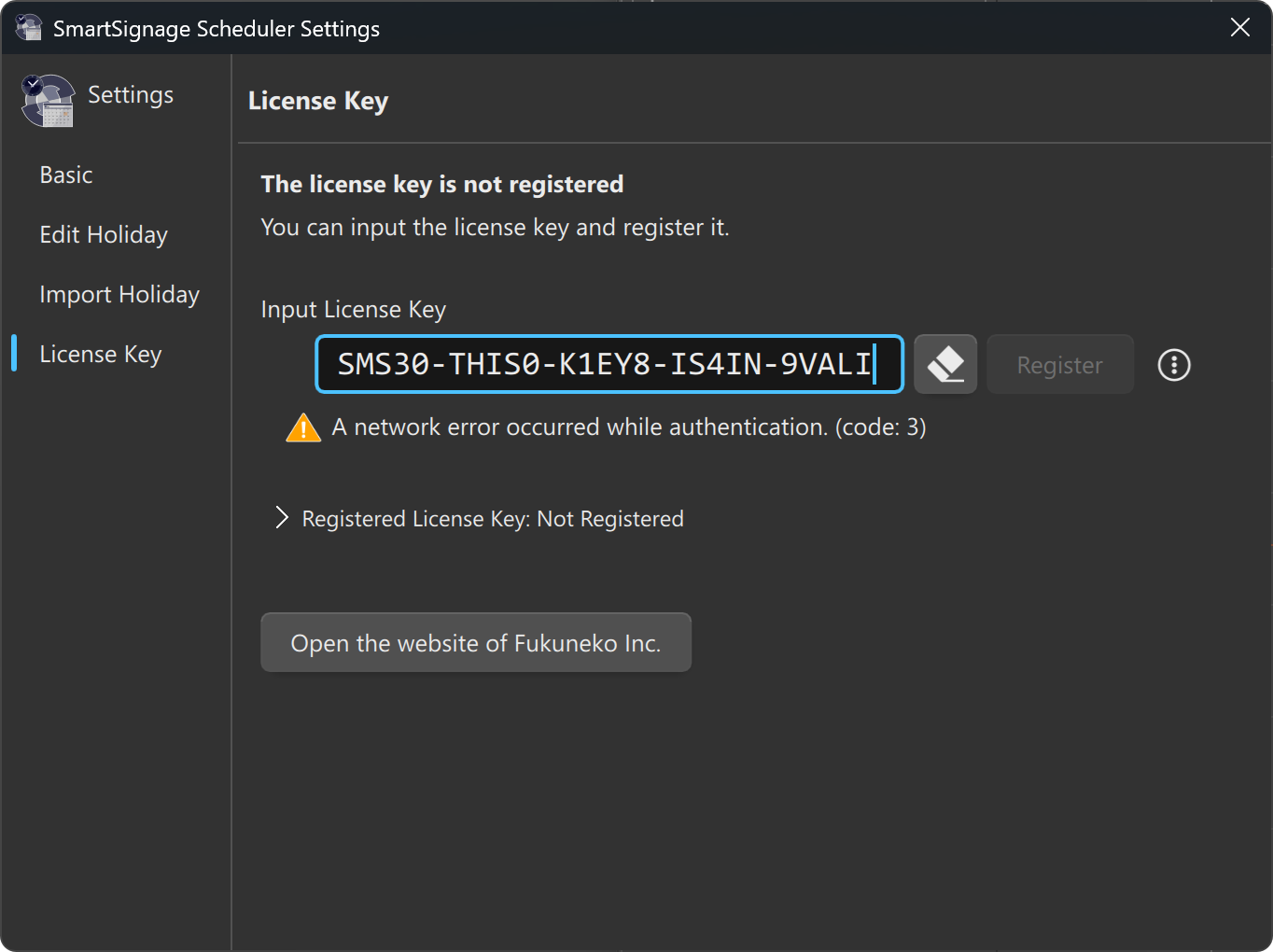
If the PC cannot access the internet, a Network Error occurs (Figure 5).
When authentication fails due to a network error, follow the procedure for Registering in an Offline Environment.
About Network Errors
There are various possible causes of network errors.
If you can browse websites from the PC using a web browser, the following issues may be responsible:
- Group Policy Restrictions
Your organization may restrict which applications are allowed to access the internet.
Contact your network administrator.- Windows Privacy Settings
Communication through Windows Defender Firewall may not be allowed.
Ensure that SmartSignageScd.exe is permitted.- Antivirus Software Blocking
If third‑party antivirus software is installed, it may be blocking the connection.
Review the antivirus settings.- Proxy Settings
If internet access requires a proxy, the connection may fail.
Offline Registration
If the PC cannot access the internet for any reason, you can register the license key using the Registration Options feature.
In this case, you will need another PC that can send and receive email, as well as a USB flash drive or similar device to transfer files from SmartSignage Scheduler.
Warning
If the PC cannot communicate with the outside world in any way
(no network access and no USB or external device access),
this option cannot be used.
In such an environment, there is no way to register a license key.
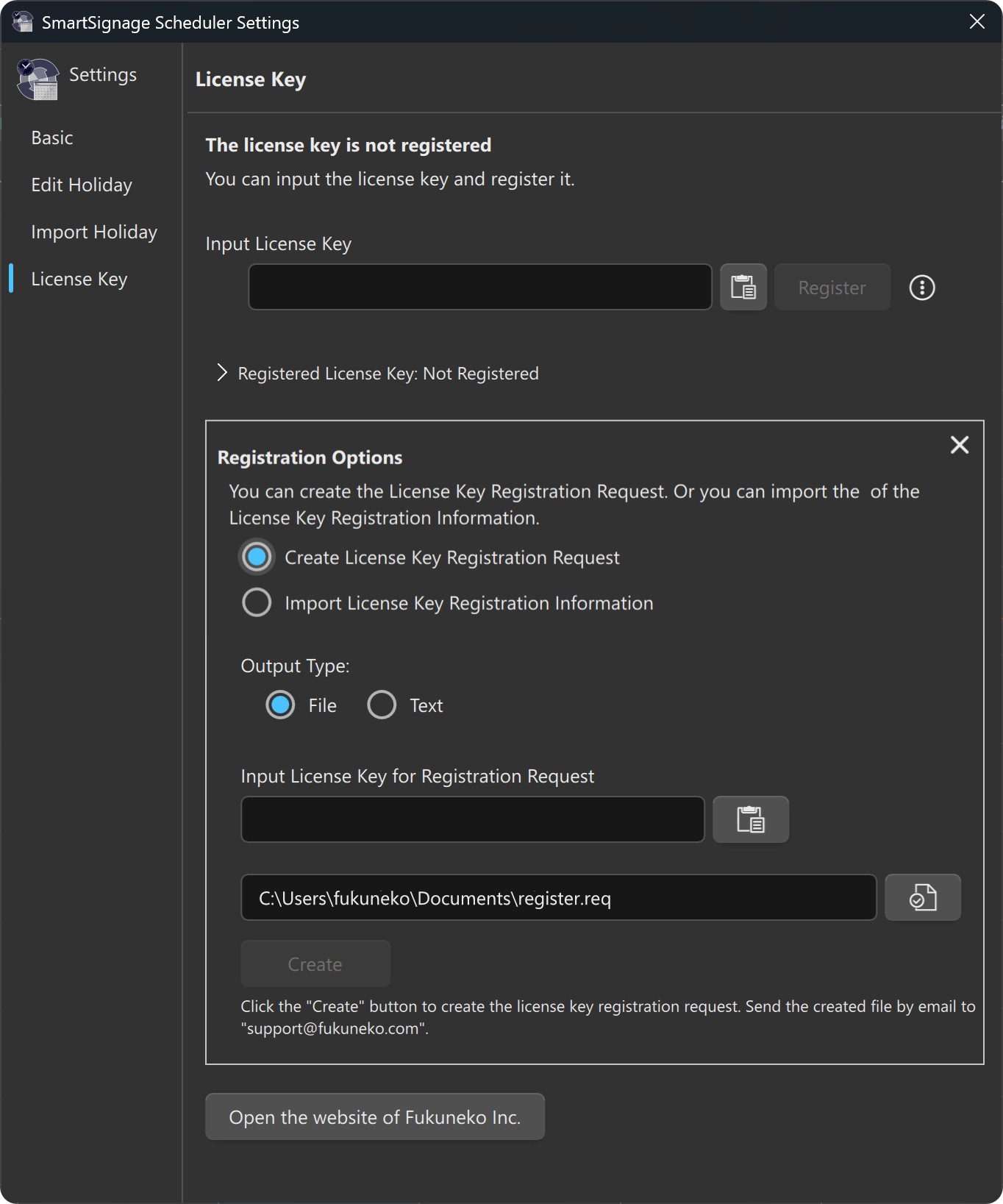
The Registration Option UI is not shown by default. Click the icon to the right of the Input License Key field to display the Registration Options UI.
Hint
If the Registration Options panel does not fit within the window, enlarge the window or scroll to view the entire section.
Registration Procedure
Follow the steps below to complete offline registration.
Creating a Registration Request File
Important
The registration request file must be created on the PC where SmartSignage Scheduler will be used.
If it is created on a different PC, registration will fail.
i. Select the radio button Create License Key Registration Request.
ii. Under Output Type, select File.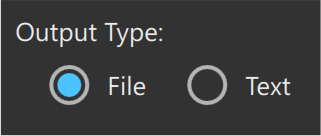
iii. Enter the license key in the Input License Key for Registration Request field.
iv. Specify the output file.
%USERPROFILE%\Documents\register.req (Windows) or$HOME/Documents/register.req (macOS).v. Click Create. The registration request file will be generated at the specified location.
Sending the Registration Request File
Copy the registration request file (in this example, register.req) to a USB flash drive or similar device.
On a PC that can send email, attach the file and send it to Fukuneko Inc. support.
- Email address:
support@fukuneko.com - Subject example:
License Key Registration Request
Receiving the Registration Information File
After Fukuneko Inc. completes the registration process, you will receive an email.
The email includes an attachment such as register_20260417.res.
This is the License Key Registration Information File.
Copy this file to a USB flash drive or similar device.
Importing the Registration Information File
Important
The registration information file must be imported on the same PC that created the registration request file.
Importing it on a different PC will fail.
i. Insert the USB flash drive into the PC where SmartSignage Scheduler is used.
ii. Launch the scheduler and open the Settings window via [Edit] » [Settings…].
iii. Select License Key from the left side.
iv. Click the icon to display the Registration Options UI.
v. Select the radio button Import License Key Registration Information.
vi. Under Input Format, select File.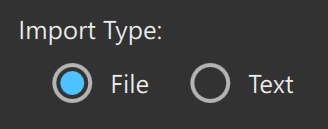
vii. Specify the registration information file.
viii. Click Import to complete the registration.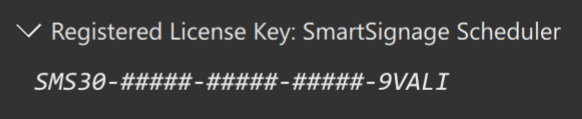
Warning
If the message “This registration information cannot be used to register the license key.” appears, the selected file is incorrect.
Unregistering a License Key
A license key is registered together with the PC’s unique device ID.
Once a license key has been registered, it cannot be registered on another PC unless it is first unregistered.
If you need to use SmartSignage Scheduler on a different PC—for example, when replacing hardware—you must unregister the license key from the current PC.
In the Settings window under License Key, click
> Registered License Key: SmartSignage Scheduler.
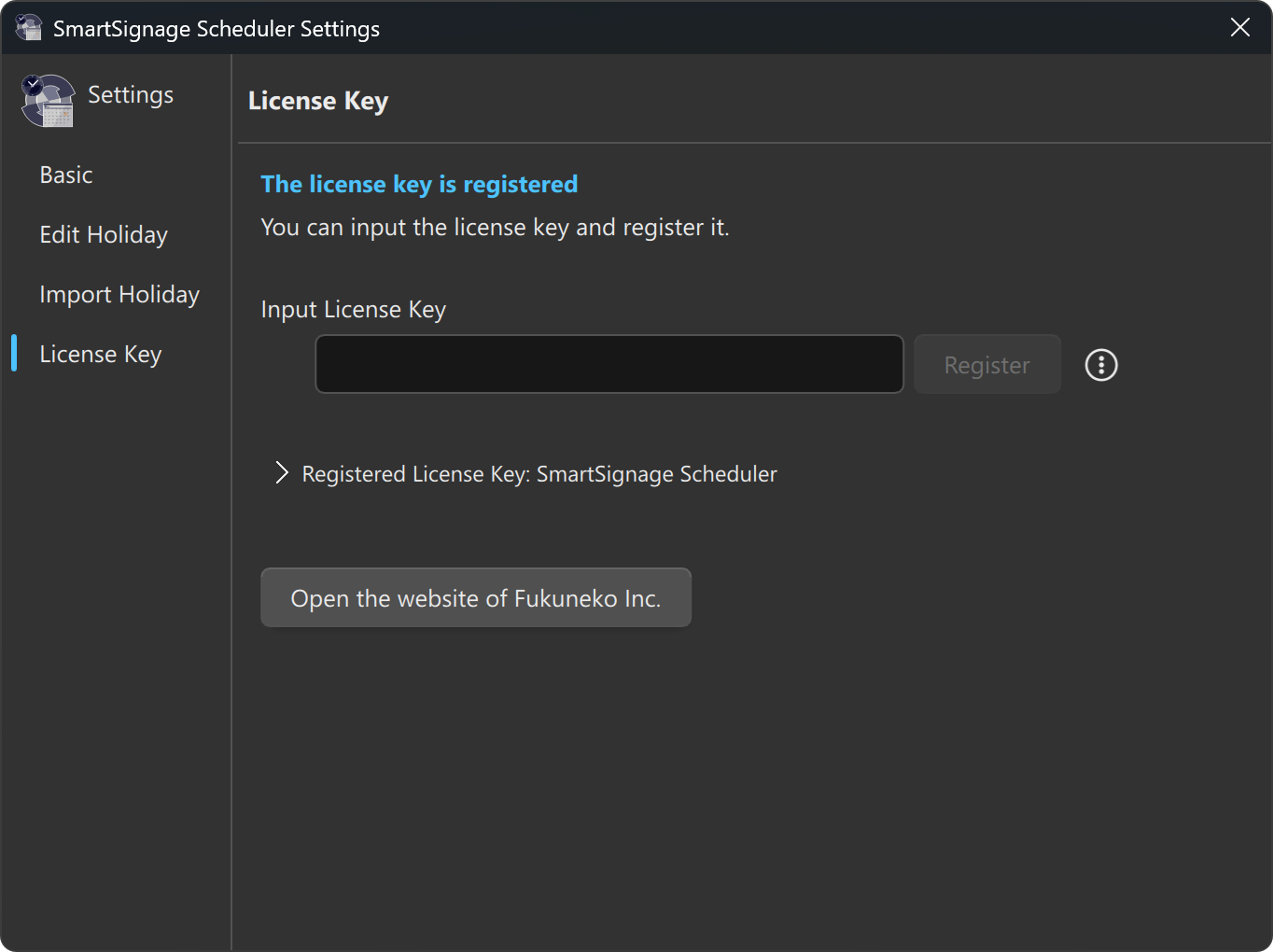
The registered license key is displayed directly below.
Only the first and last five characters are shown; the remaining characters are masked with # symbols.
Click the license key to display the [Unregister] menu on the right (Figure 16).
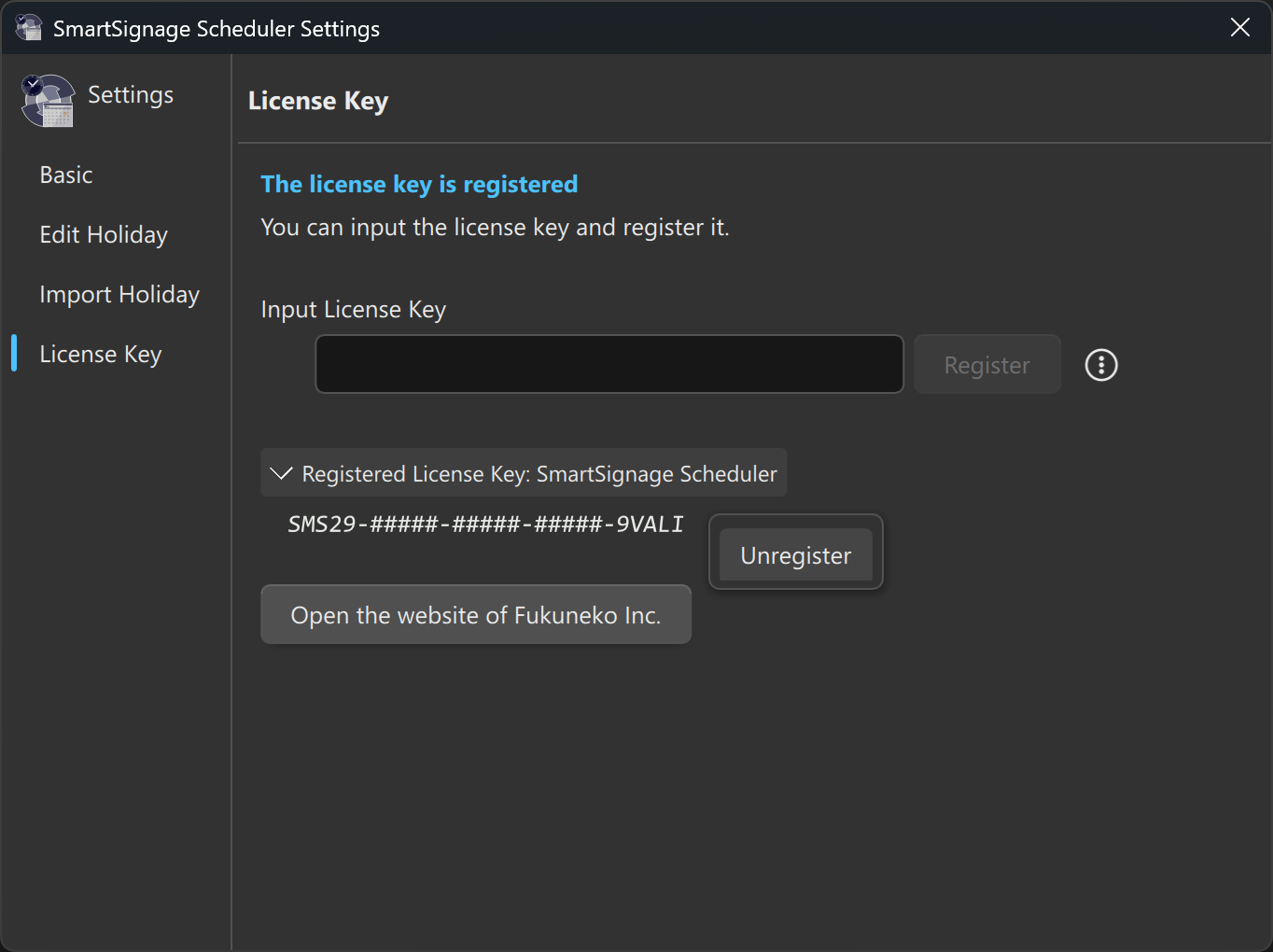
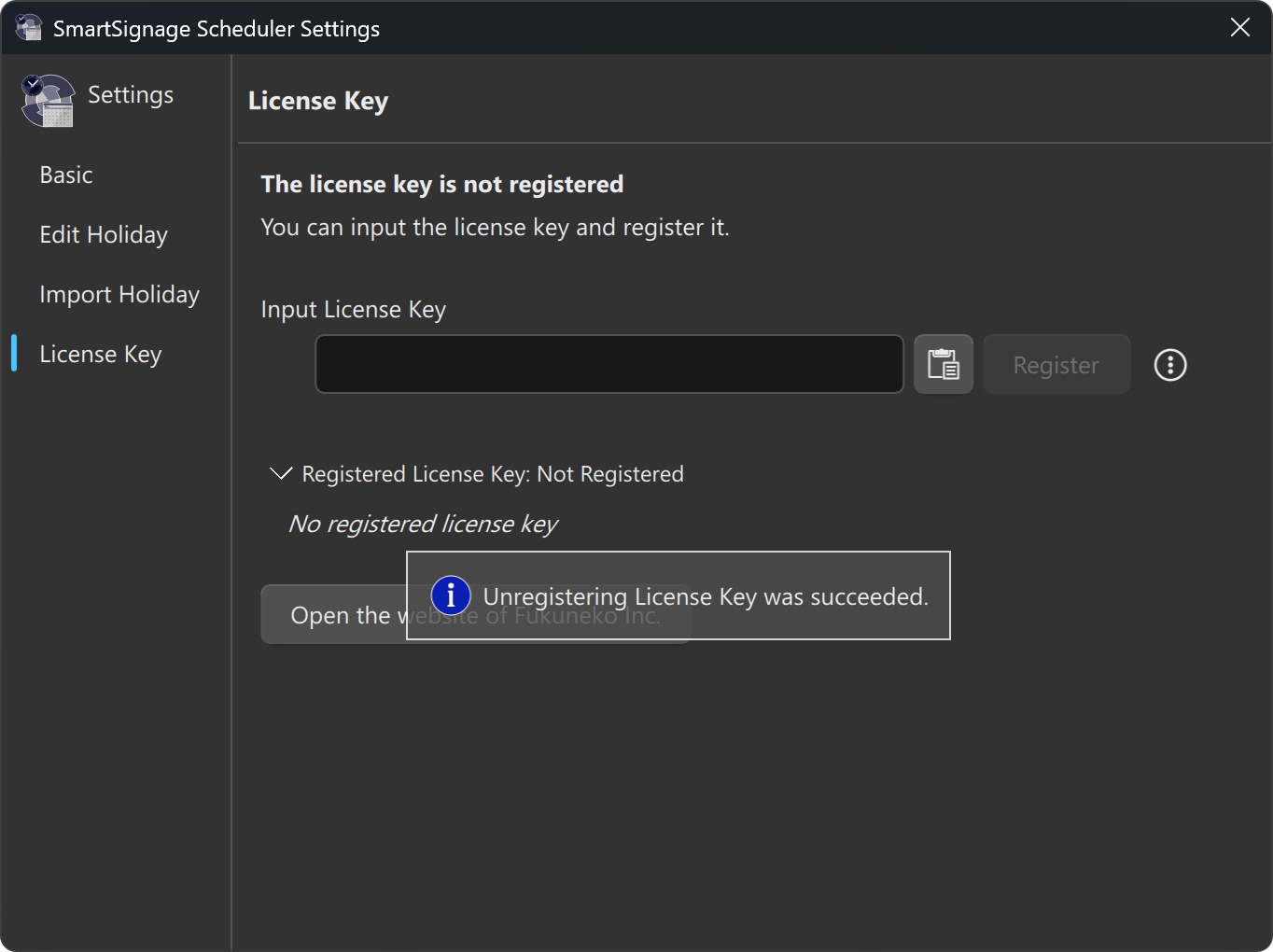
When the license key has been successfully unregistered, a message such as “Unregistring License Key was succeeded.” is displayed, and the status changes to No Registered License Key(Figure 17).
Unregistering Offline
Normally, an internet connection is required to unregister a license key.
If the PC cannot connect to the internet for any reason, you can use the Unregistration Options feature to create an Unregistration Request File.
Warning
Creating an unregistration request file removes the license key from the PC immediately.
Until Fukuneko Inc. processes the request after you send the file, the license key cannot be used.
Unregistration Procedure
Follow the steps below.
Open the Settings Window
From the menu, select [Edit] » [Settings…], then choose License Key on the left side.
Display the Unregistration Options
Click the icon to the right of the license key input field to display the Unregistration Options UI.
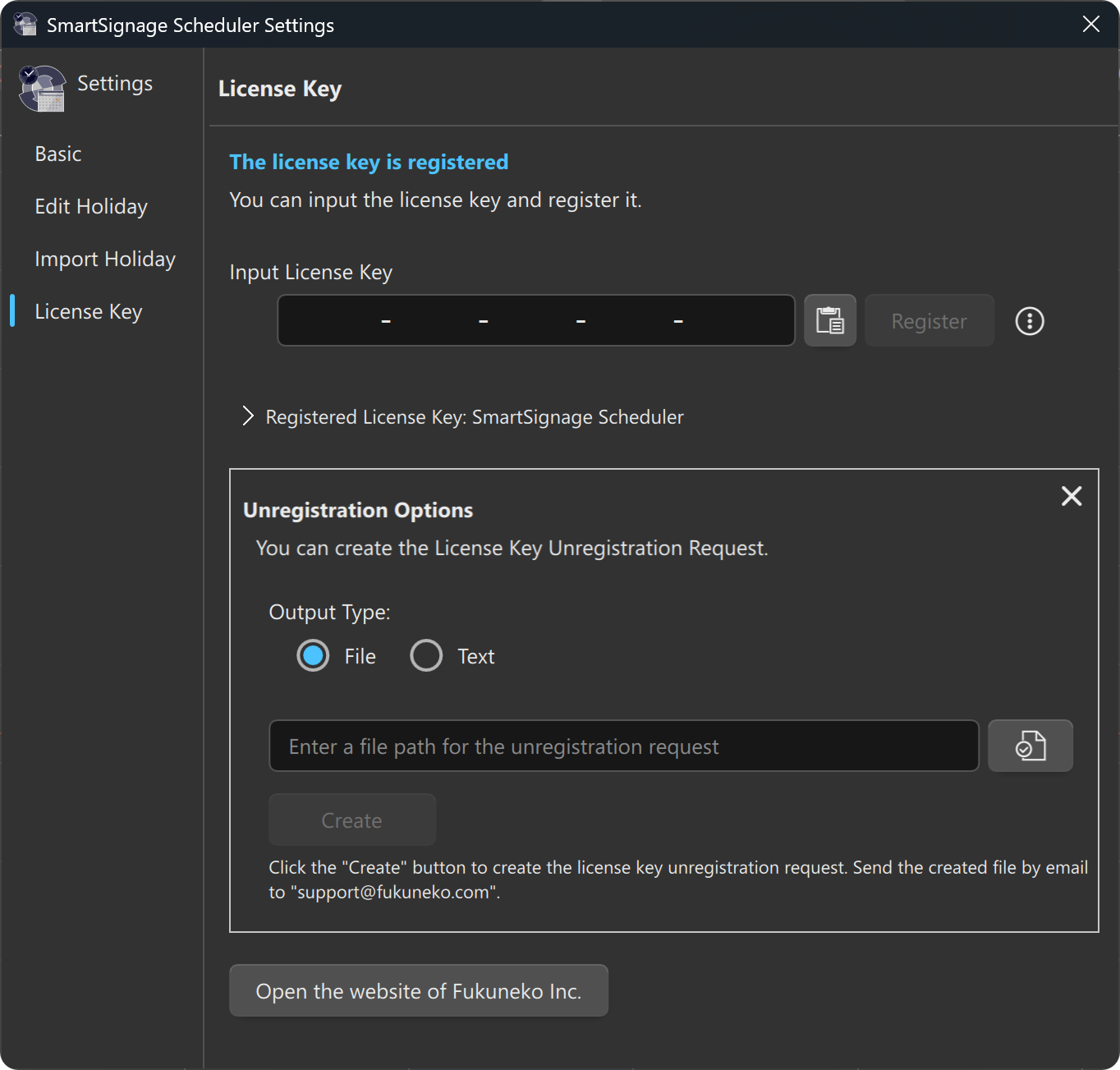
Create an Unregistration Request File
i. Under Output Type, select File.
ii. Enter or specify the output file path.
Use a name such as unregister.req.
iii. Click Create.
iv. A message such as “License key unregistration request file has been created.” appears, and the file is generated.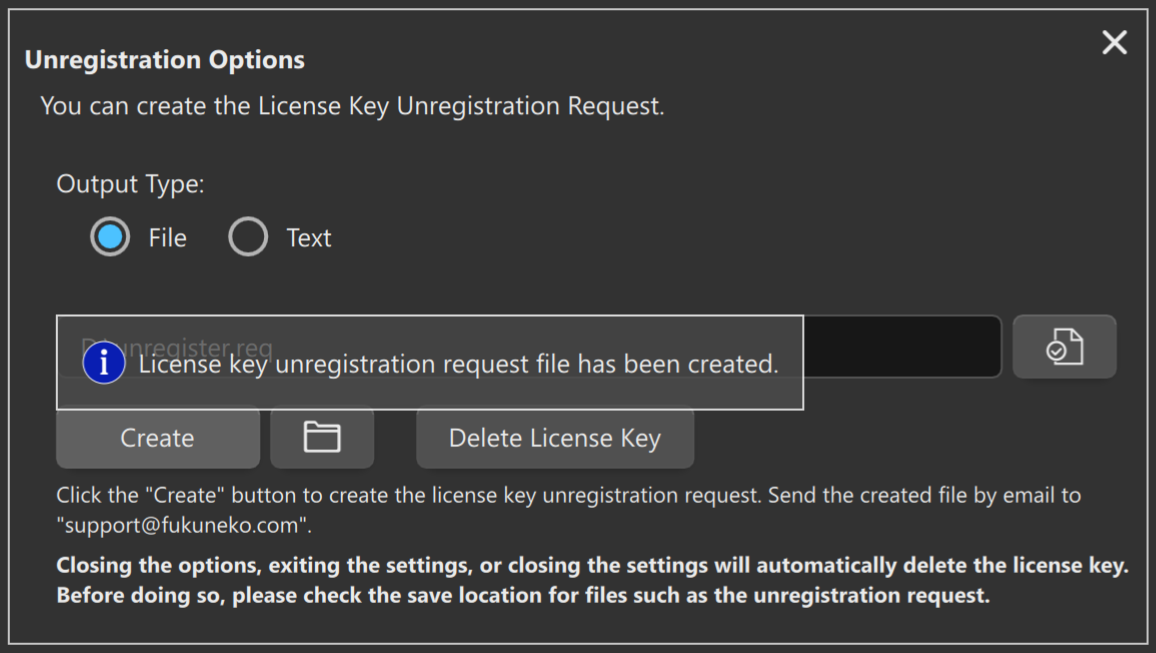
v. Attach the generated file to an email and send it to support@fukuneko.com.
When Email Attachments Cannot Be Used
When performing offline registration or unregistration in an environment where email attachments cannot be used, you can instead use the Registration Request String or Unregistration Request String. In either case, you can switch to this mode by selecting Text under Format.
Registration Request String
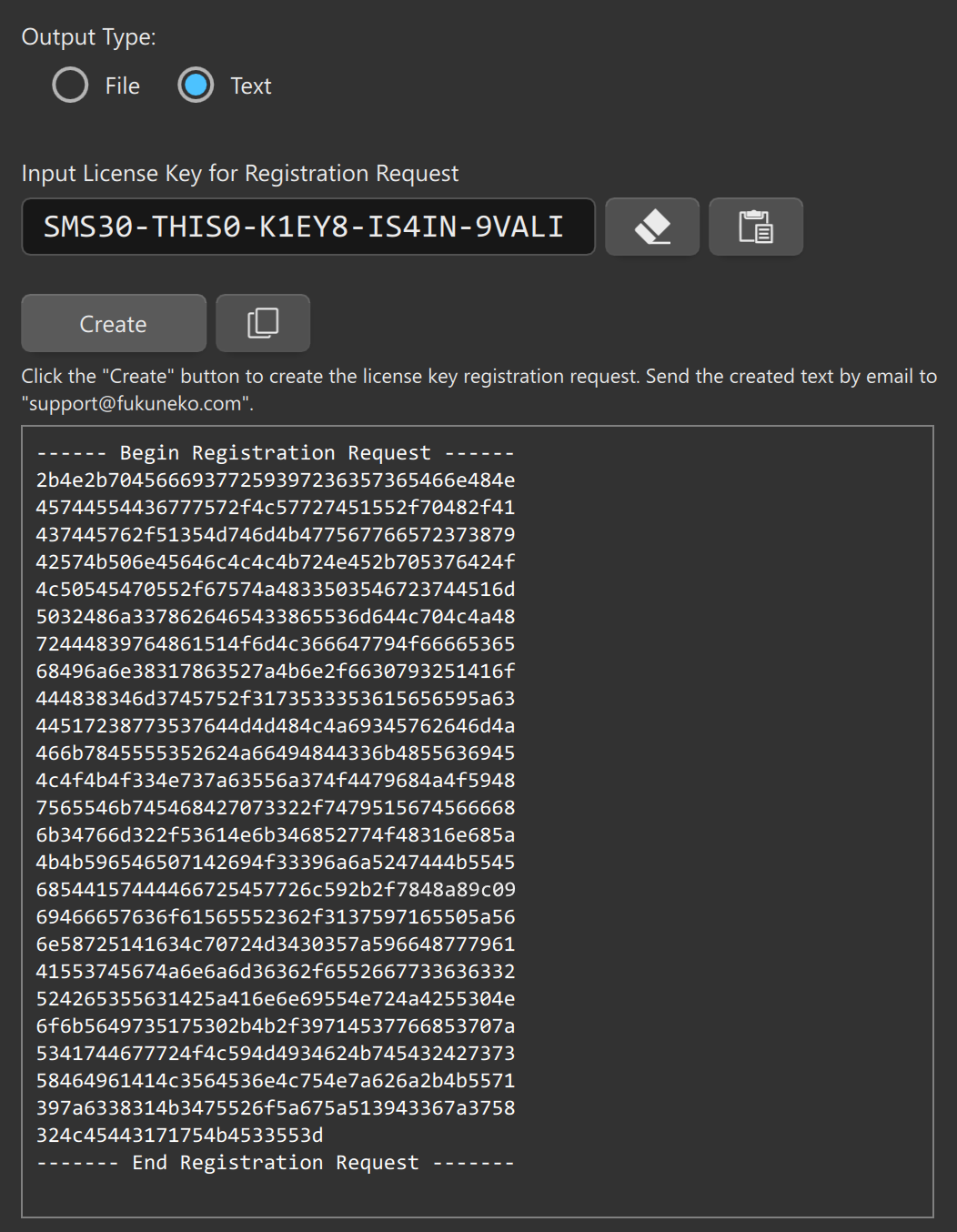
When Text is selected as the Output Type, entering the license key and clicking Create displays the request string as shown in Figure 22.
Clicking the button copies the string to the clipboard.
You can paste this string into the body of an email and use it in place of a registration request file.
Registration Information String
The reply email from Fukuneko Inc. contains the registration information not only as an attachment but also as a text block in the message body.
Copy the text beginning with:------- Begin Registration Result ------
and ending with:-------- End Registration Result -------
In the License Key Registration Options, select Import License Key Registration Information, then choose Text under Import Type.
The screen will appear as shown in Figure 23.
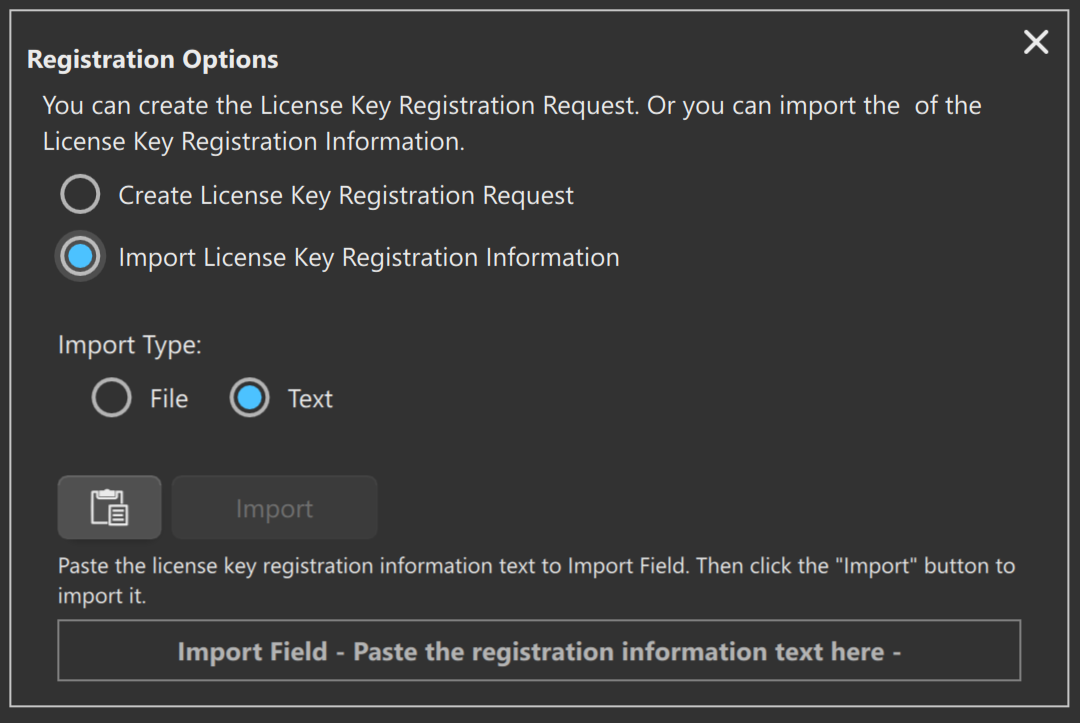
Clicking the button pastes the string from the clipboard (Figure 24).
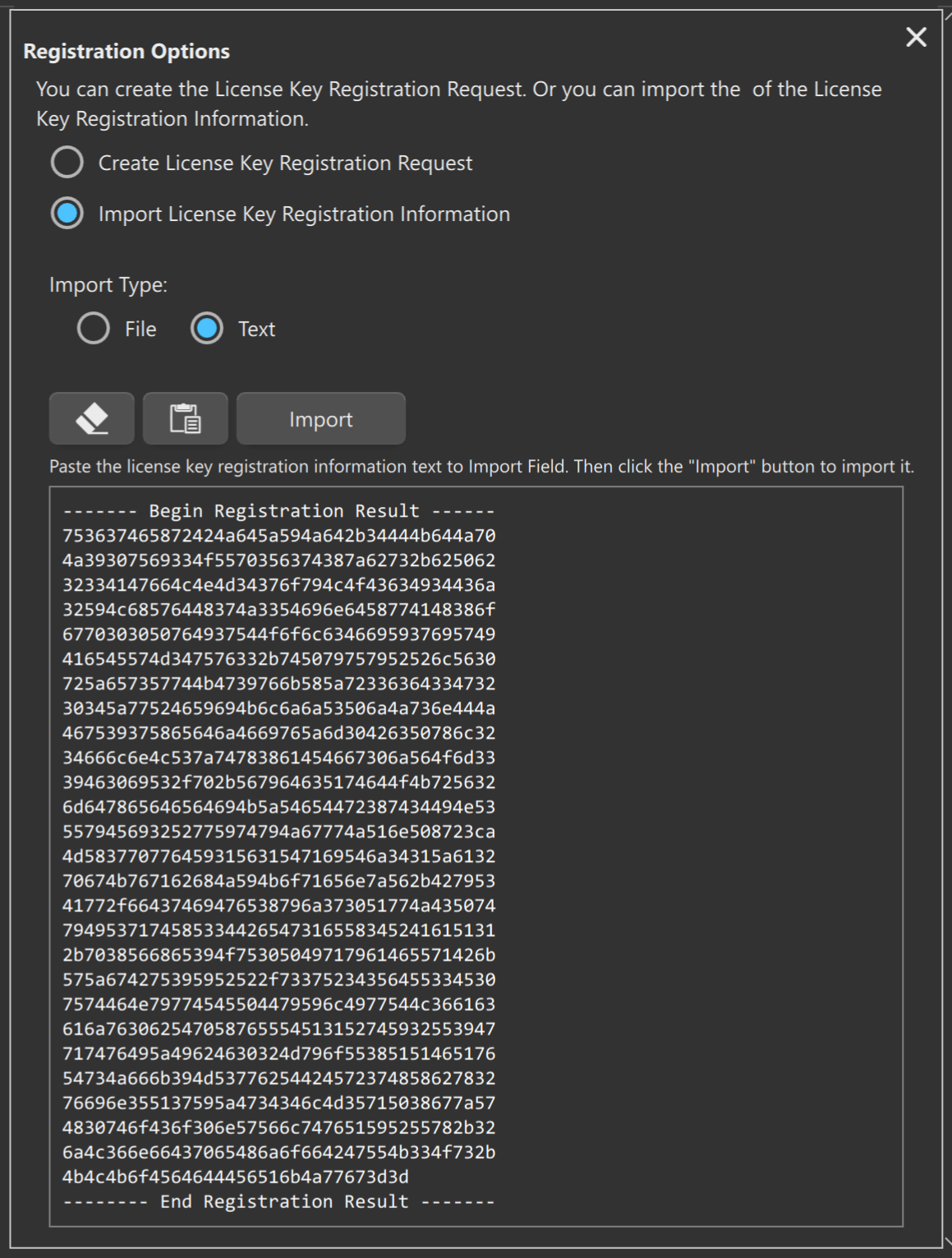
Click Import to load the information and complete the license key registration.
Unregistration Request String
When performing offline license key unregistration, you can output the request not only as a file but also as a text string.
Select Text as the output type and click Create.
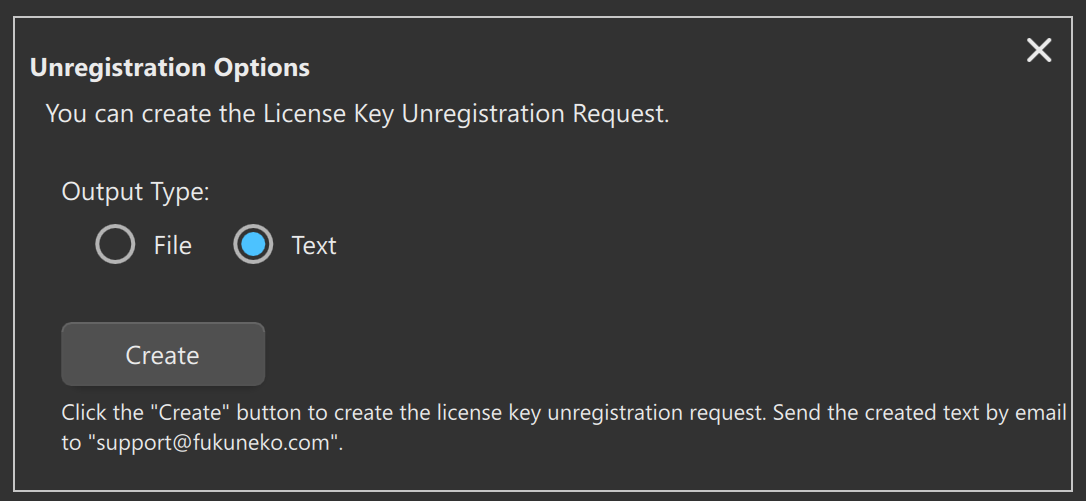
The unregistration request string is generated.
Clicking the button copies the string to the clipboard.
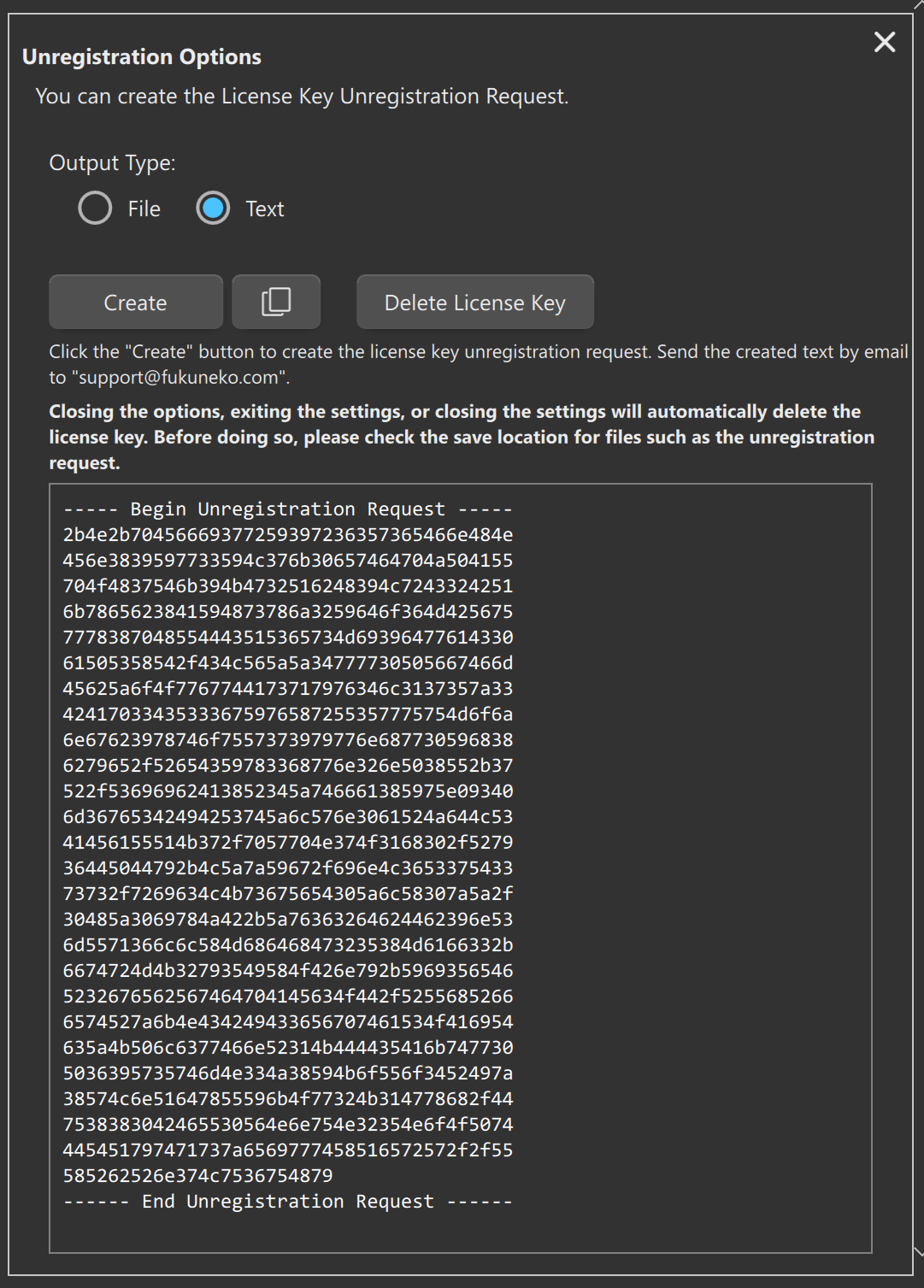
You can paste this string directly into the body of an email to send the unregistration request.
Reference
If the PC you are using cannot send email directly, paste the string into a text editor and save it as a file.
Transfer the file to a PC that can send email, open it, copy the string, and paste it into the email body.