Basic
Select Basic from the list on the left side of the Settings window.
(Basic is already selected when the Settings window first opens, so you do not need to select it at startup.)
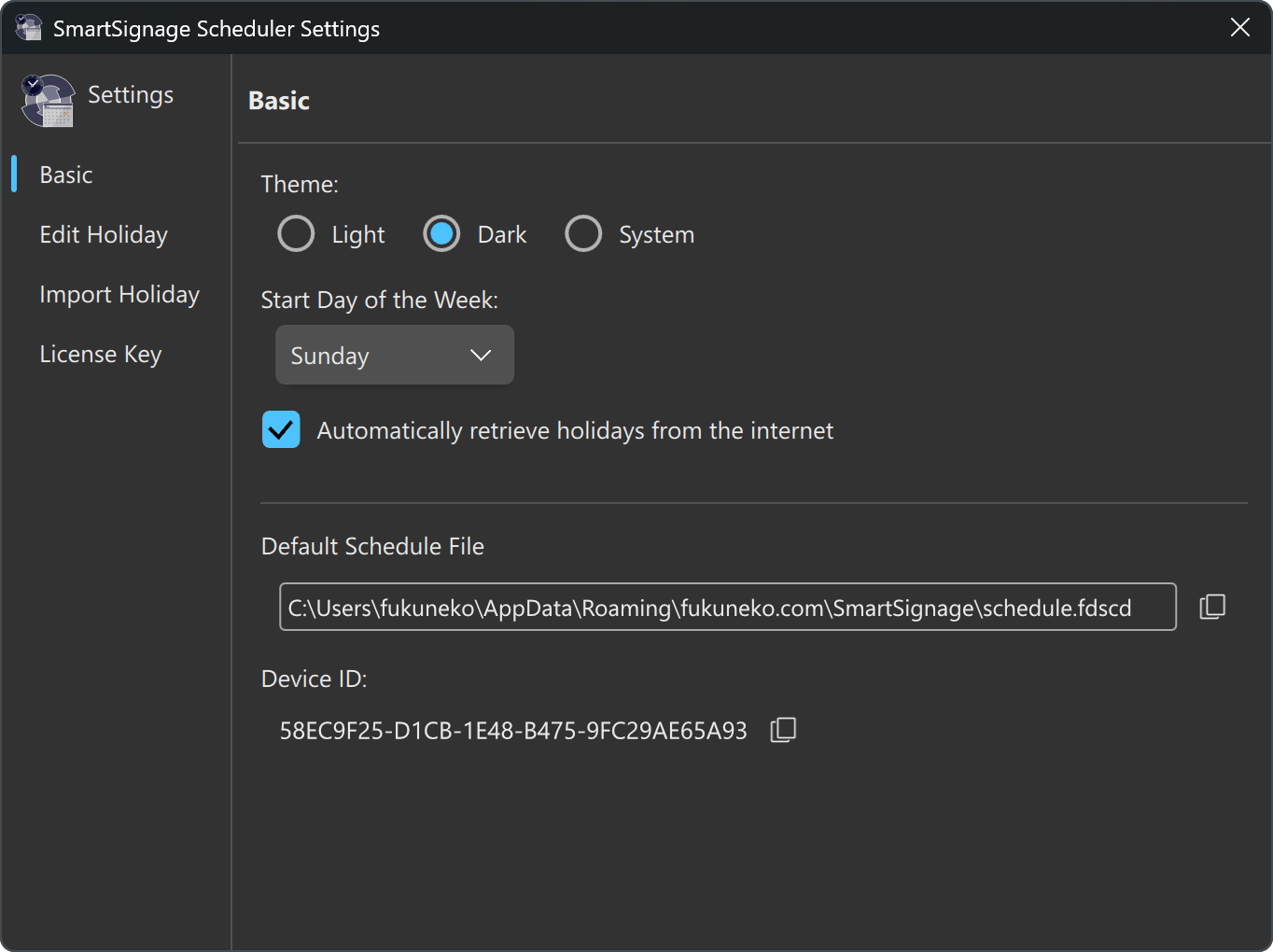
Theme
You can change the overall color scheme of SmartSignage Scheduler.
- Light — A light theme based on white tones
- Dark — A dark theme based on black tones Default
- System — Automatically switches between Light and Dark according to the OS settings
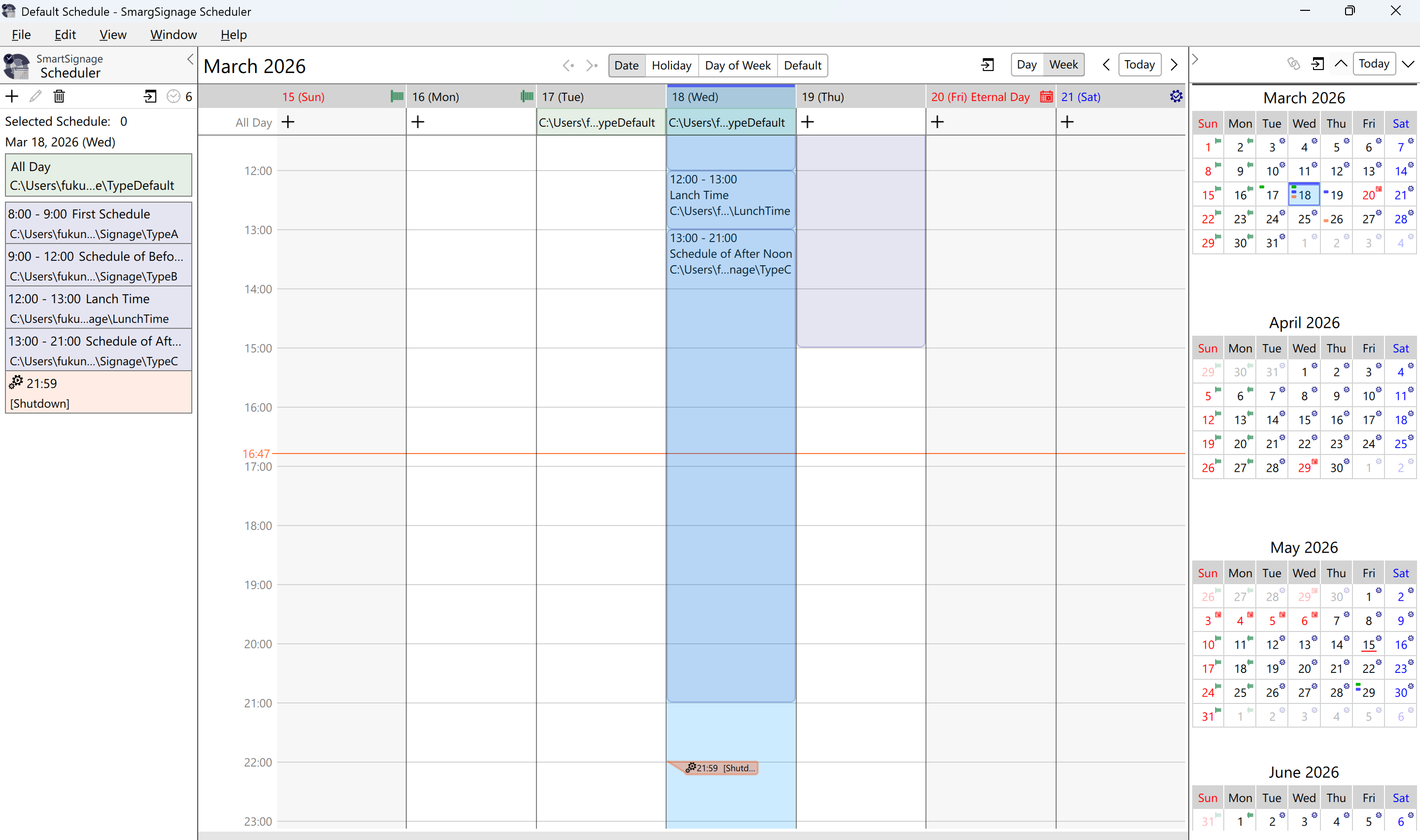
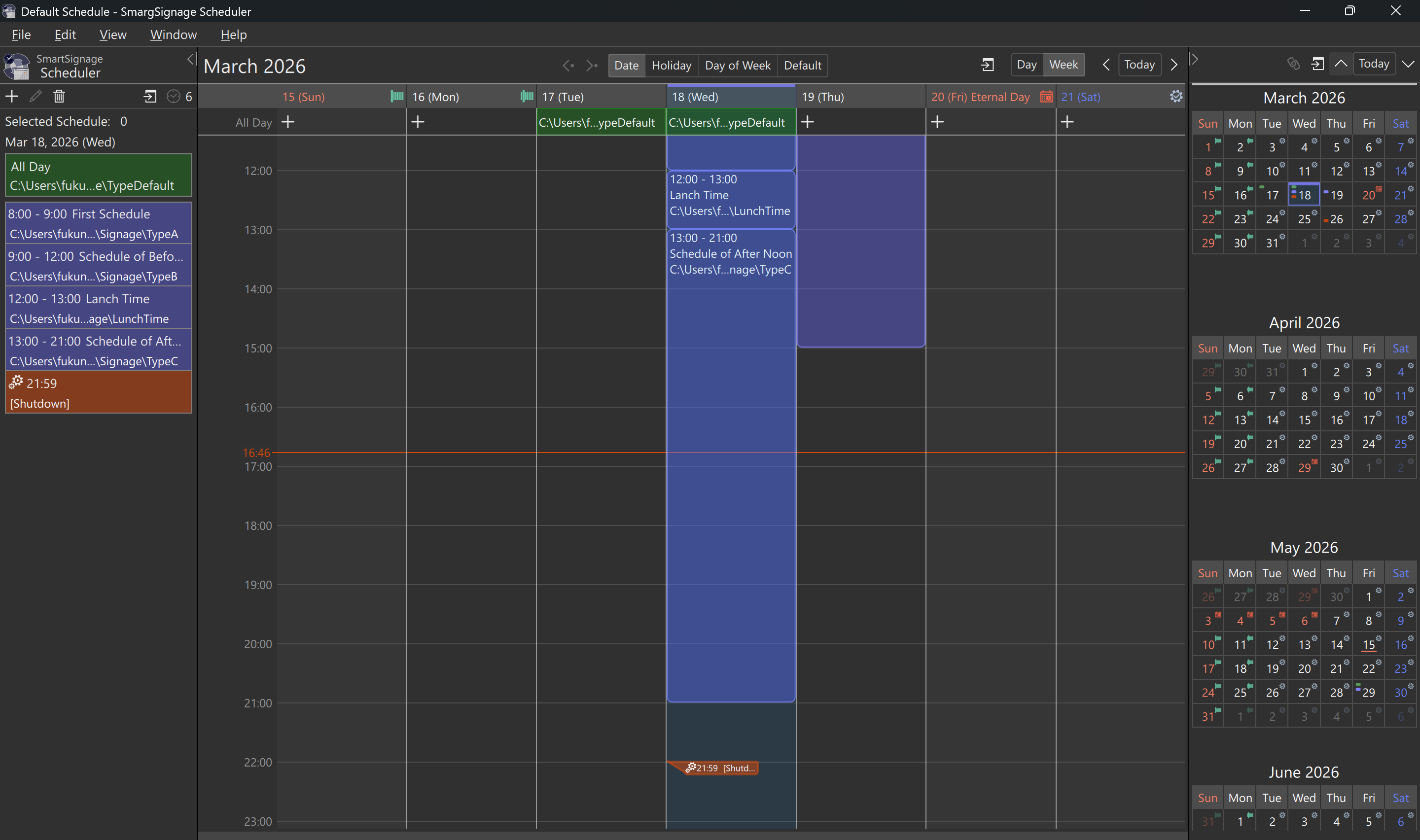
Start Day of the Week
You can change the first day of the week used when the scheduler displays weekly views.
By default, the week starts on Sunday, but you can switch it to Monday, or to any other day — Tuesday, Wednesday, Thursday, Friday, or Saturday.
Immediate Effect
Changes to the start day of the week take effect immediately.
Depending on the environment, the update may take a few seconds, so please wait briefly.
Automatically Retrieve Holidays from the Internet
When this option is enabled, the scheduler periodically retrieves holiday data from the internet.
Automatic retrieval is supported only for Japan and the United States (Federal Holidays).
Whether the feature is enabled depends on the system’s regional settings.
If the system region is not supported, automatic retrieval will not operate.
Default Schedule File
When you launch the Scheduler for the first time, a default schedule file is automatically created and opened.
From the second launch onward, this file is automatically selected.
The path shown here indicates the location of the default schedule file (this cannot be changed).
Click the icon to copy the path to the clipboard.
Device ID
The Device ID is a unique identifier for the PC on which the Scheduler is running.
It is generated through the operating system.
When you register a license key, this Device ID is associated with the license.
Click the icon to copy the Device ID to the clipboard.