Import Holiday
With Import Holiday, you can import holiday data all at once. You can import from a file in the required format, and for Japan (Japanese) and the United States (English), you can also import holiday data directly from the internet.
Import Holiday
Select Import Holiday from the list on the left side of the Settings window.
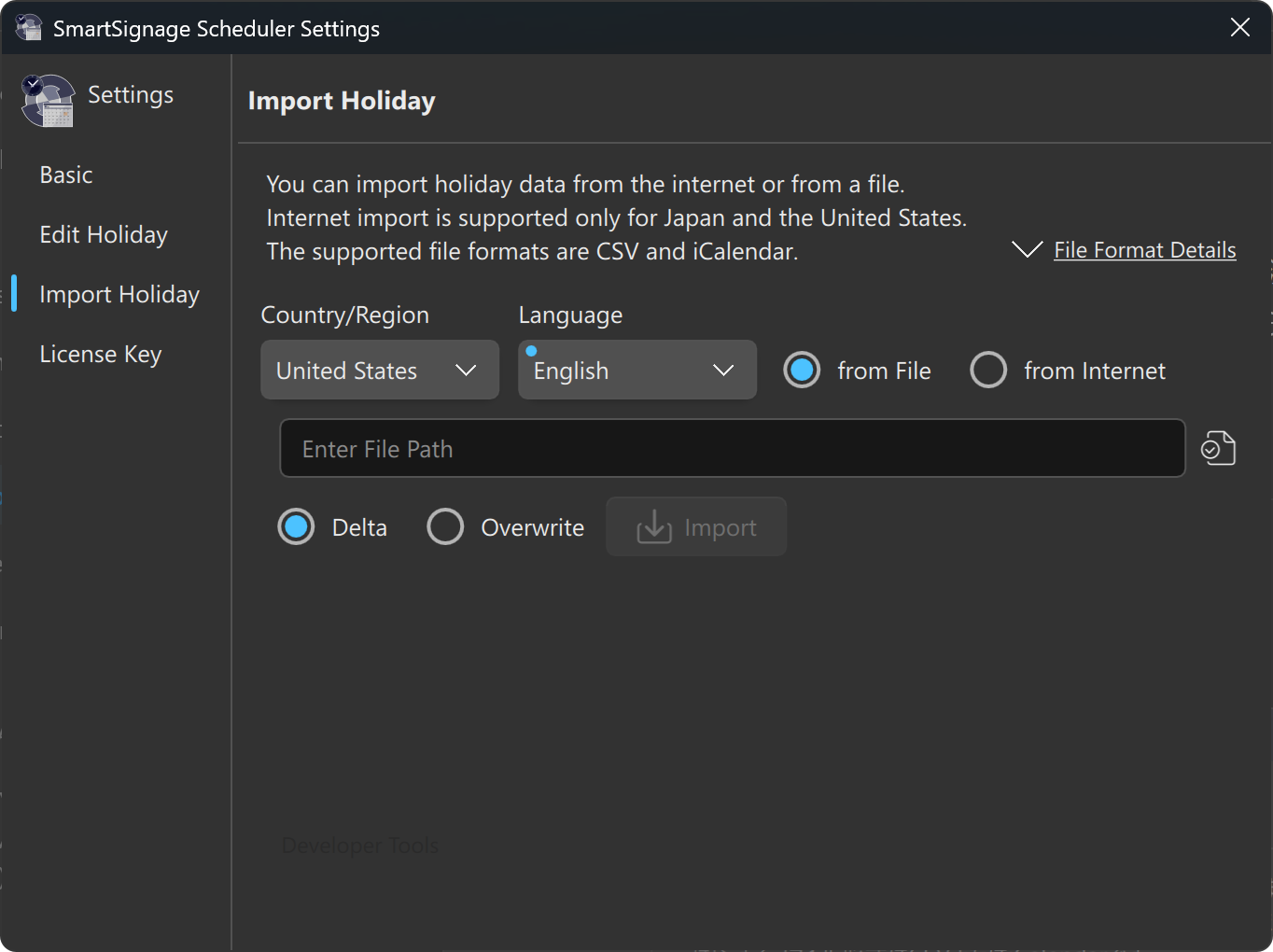
Select the Country/Region and Language into which the holiday data will be imported.
This selection applies both when importing from a file and when importing from the internet.
Important
The data will be imported into the country/region and language selected here.
The system does not detect or interpret the language contained in the data.
For example, if you select United States and English, and the data is written in Japanese, it will be imported as Japanese.
Importing from a File
Select from File. (This is the default selection. If from Internet was previously selected, switching back will display the field for entering a file path.)
Enter the file path, or click the button to choose a file. Next, select either Delta or Overwrite, then click Import to begin importing.
“Delta” and “Overwrite”
- Delta
If a date in the imported data matches a date already registered as a holiday, the existing holiday takes priority and the imported entry is skipped. - Overwrite
If a date in the imported data matches an existing holiday, the imported entry takes priority.
Since the date is the same, only the name is updated.
File Formats
Two file formats are supported for importing holiday data: CSV and iCalendar.
CSV Format
CSV stands for Comma-Separated Values.
Files must be encoded in UTF‑8, and line breaks must use CR+LF (Carriage Return + Line Feed).
Each line contains a date and a holiday name, separated by a comma.
Only the first comma in the line is treated as the delimiter.
Any commas that appear after the first one are treated as part of the holiday name.
The date format follows ISO 8601, using a four‑digit year, two‑digit month, and two‑digit day separated by hyphens.
Format:
<YYYY-MM-DD>,<Holiday Name><CR+LF>
Example: January 1, 2025 with the holiday name “New Year’s Day”
2025-01-01,New Year's Day⏎Below is an example with multiple entries:
2025-01-01,New Year's Day⏎
2025-01-18,Birthday of Martin Luther King, Jr.⏎
2025-05-26,Memorial Day⏎
2025-11-27,Thanksgiving Day⏎
Note
In the second line, the holiday name contains a comma (,), but it is not treated as a delimiter.
You can create the data using a text editor and save it with a .csv extension to use it for importing.
iCalendar Format
iCalendar stands for Internet Calendaring and Scheduling Core Object Specification.
It is defined in RFC 5545.
Files must be encoded in UTF‑8, and line breaks must use CR+LF (Carriage Return + Line Feed).
In the examples below, ⏎ represents a CR+LF line break.
Holidays are represented using the VEVENT component.
The DTSTART property defines the date, and the SUMMARY property defines the holiday name.
Dates are written without separators, using a four‑digit year, two‑digit month, and two‑digit day. The date is specified in the DTSTART property using the VALUE=DATE parameter.
DTSTART;VALUE=DATE:YYYYMMDD⏎SUMMARY:Holiday Name⏎Each date and name pair must be placed inside a VEVENT component (between BEGIN:VEVENT and END:VEVENT):
BEGIN:VEVENT⏎
DTSTART;VALUE=DATE:20250101⏎
SUMMARY:New Year's Day⏎
END:VEVENT⏎
The entire set of VEVENT components must be enclosed within an iCalendar object (between BEGIN:VCALENDAR and END:VCALENDAR):
BEGIN:VCALENDAR⏎
BEGIN:VEVENT⏎
DTSTART;VALUE=DATE:20250101⏎
SUMMARY:New Year's Day⏎
END:VEVENT⏎
END:VCALENDAR⏎
Below is an example containing multiple entries. Multiple VEVENT components are placed inside a single iCalendar object:
BEGIN:VCALENDAR⏎
BEGIN:VEVENT⏎
DTSTART;VALUE=DATE:20250101⏎
SUMMARY:New Year’s Day⏎
END:VEVENT⏎
BEGIN:VEVENT⏎
DTSTART;VALUE=DATE:20250120⏎
SUMMARY:Birthday of Martin Luther King\, Jr.⏎
END:VEVENT⏎
BEGIN:VEVENT⏎
DTSTART;VALUE=DATE:20250526⏎
SUMMARY:Memorial Day⏎
END:VEVENT⏎
BEGIN:VEVENT⏎
DTSTART;VALUE=DATE:20251127⏎
SUMMARY:Thanksgiving Day⏎
END:VEVENT⏎
BEGIN:VEVENT⏎
DTSTART;VALUE=DATE:20251225⏎
SUMMARY:Christmas Day⏎
END:VEVENT⏎
END:VCALENDAR⏎
Important
In the second VEVENT component above, the SUMMARY property contains a comma (,).
According to the iCalendar specification, commas must be escaped with a backslash (\).
You can create the data using a text editor and save it with a .ics extension to use it for importing.
Importing from the Internet
If the PC has internet access, holiday data can be retrieved from the internet.
Supported data sources:
| Country/Region | Language | Source |
|---|---|---|
| Japan | Japanese | Cabinet Office – National Holidays |
| United States | English | Federal Holidays |
Caution
Importing may fail if the data source changes its format or structure.
How to Import
Use the window shown in Figure 1.
Select Country/Region and Language
Choose the Country/Region and Language into which the data will be imported.
Select the Radio Button
Select the Internet radio button.
Choose an Option
Select either Delta or Overwrite.
Execute
Click the Import button.
“Delta” and “Overwrite”
- Delta
If a date in the imported data matches a date already registered as a holiday, the existing holiday takes priority and the imported entry is skipped. - Overwrite
If a date in the imported data matches an existing holiday, the imported entry takes priority.
Since the date is the same, only the name is updated.