Delete Multiple Items
You can delete all schedules and action items, or delete only those belonging to a specific view.
Caution
These operations cannot be undone. Proceed with caution.
Delete All
Deletes all schedules, including their action items.
From the menu, choose:
Edit » Delete Schedules » Delete All Schedules…
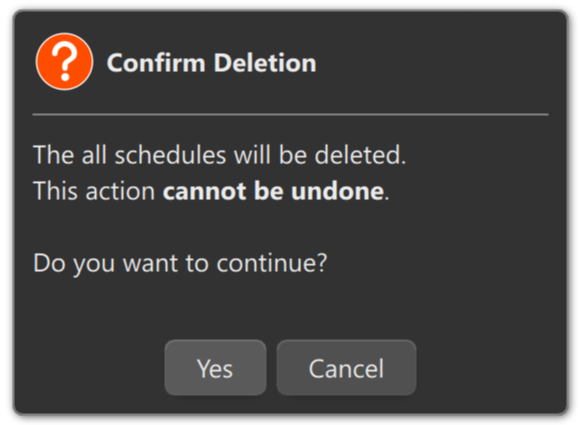
A Deletion Confirmation dialog box appears.
Press Yes to delete.
Delete from the Date View
Deletes all schedules—including action items—from the Date View only.
Schedules in other views are not affected.
From the menu, choose:
Edit » Delete Schedules » Delete Date Schedules…
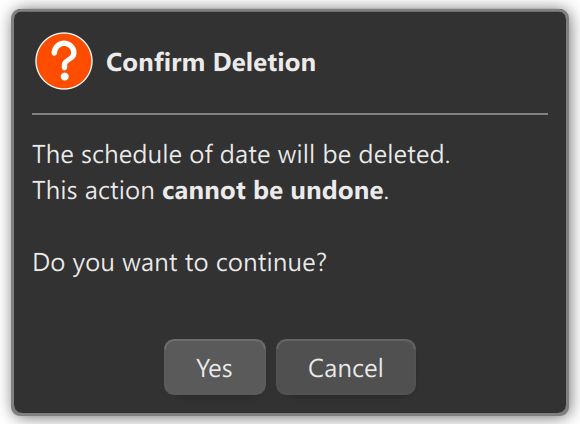
A Deletion Confirmation dialog box appears.
Press Yes to delete.
Delete from the Holiday View
Deletes all schedules—including action items—from the Holiday View only.
Schedules in other views are not affected.
From the menu, choose:
Edit » Delete Schedules » Delete Holiday Schedules…
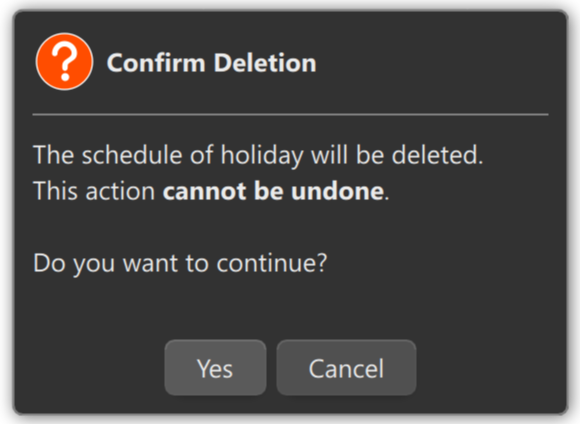
A Deletion Confirmation dialog box appears.
Press Yes to delete.
Delete from the Day-of-Week View
Deletes all schedules—including action items—from the Day-of-Week View only.
Schedules in other views are not affected.
From the menu, choose:
Edit » Delete Schedules » Delete Weekly Schedules…
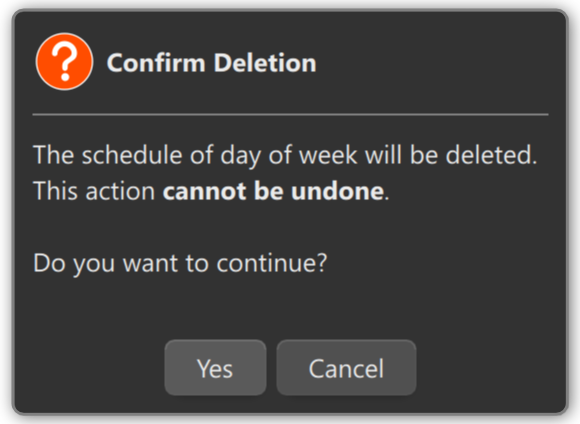
A Deletion Confirmation dialog box appears.
Press Yes to delete.
Delete from the Default View
Deletes all schedules—including action items—from the Default View only.
Schedules in other views are not affected.
From the menu, choose:
Edit » Delete Schedules » Delete Default Schedules…
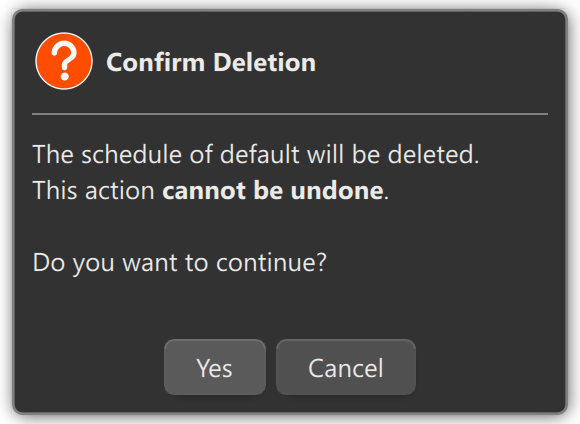
A Deletion Confirmation dialog box appears.
Press Yes to delete.