Edit a Trigger
This section explains how to edit a Trigger that has already been placed in a column in the Main View.
Selecting a Trigger
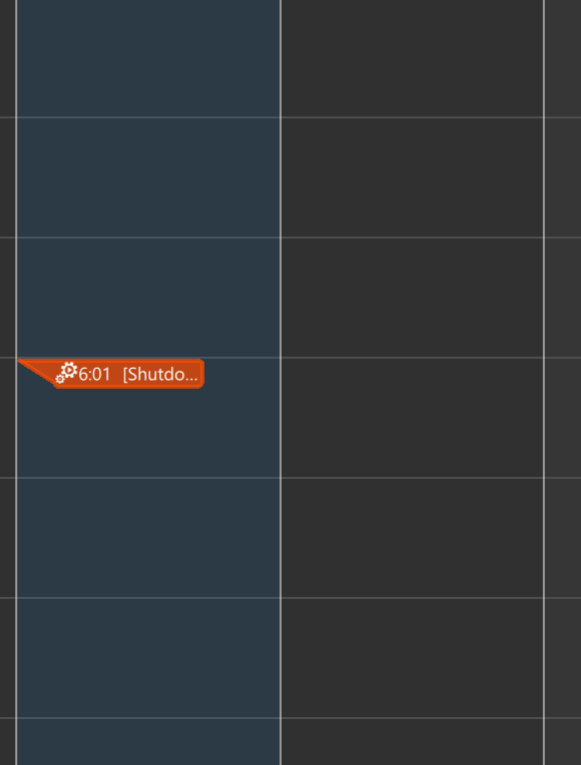
To edit a Trigger, click it to select it.
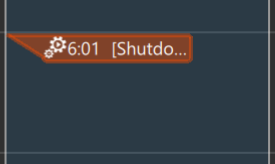
When unselected, the Trigger is shown in the color as in Figure 1.
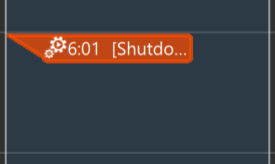
When selected, it appears in the color as shown in Figure 2.
Editing a Trigger
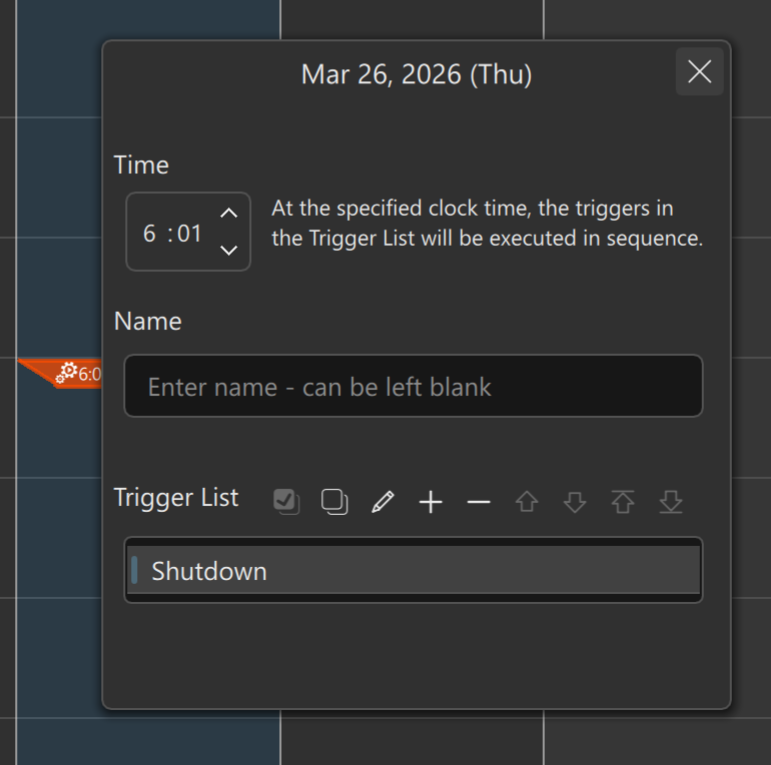
With a Trigger selected, choose [Edit] » [Edit Selected Item...] from the menu to open the dialog box where you can configure the Trigger.
Other methods
You can also right‑click and select [Edit Selected Item...].
Additionally, double‑clicking a Trigger will open the same edit dialog.
You can modify all settings for the Trigger in this dialog box. For details on each field, see Add a Trigger.
Adjusting by Dragging
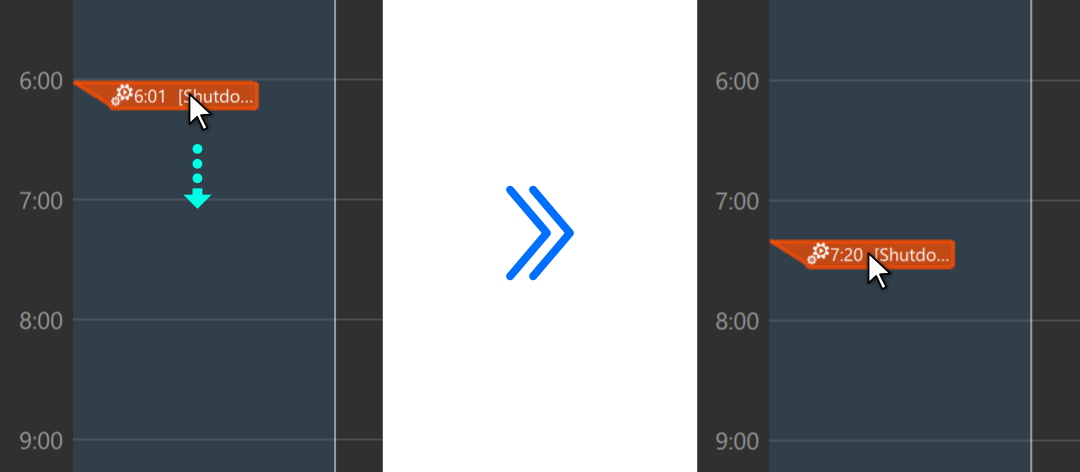
You can change the execution time of a Trigger by dragging it up or down.
Undo
You can undo a time change by selecting [Edit] » [Undo] or by choosing [Undo] from the right‑click context menu.