Switch Windows
When multiple windows are open, you can switch between them.
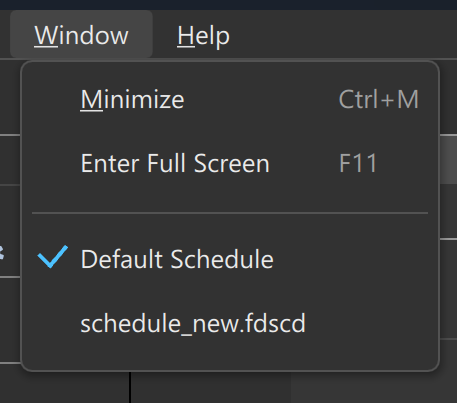
Select [Window] from the menu, and a list of all open windows will appear at the bottom of the menu.
In Figure 1, two windows are open: Default Schedule and schedule_new.fdscd.
The window marked with the check icon indicates the current window.
In this example, the current window is Default Schedule.
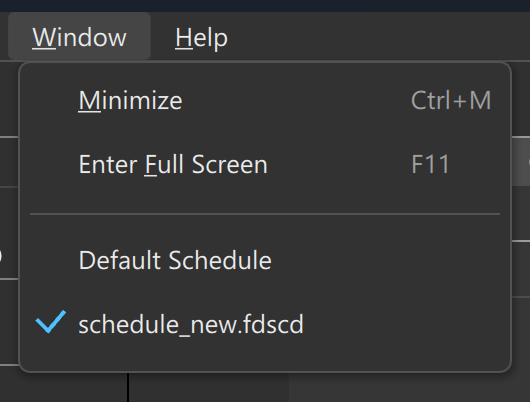
If you choose [schedule_new.fdscd] from the [Window] menu, the window displaying schedule_new.fdscd will move to the front. When you open the [Window] menu again, the check icon will now appear next to schedule_new.fdscd, indicating that the active window has switched (Figure 2).
Note
Multiple windows are opened in the following cases:
When you create a new schedule file
When you open an existing schedule file using [File] » [Open in New Window...]
Warning
It is possible to open the same file in multiple windows.
However, doing so may cause inconsistencies in the file, so proceed with caution.