Check Schedules
You can specify a date and time to check which schedules or triggers will be executed at that moment.
Note
This feature operates on saved schedules.
Any changes made in the Scheduler that have not been saved will not be reflected.
To open this feature, choose [File] » [Check Stored Schedule...] from the menu.
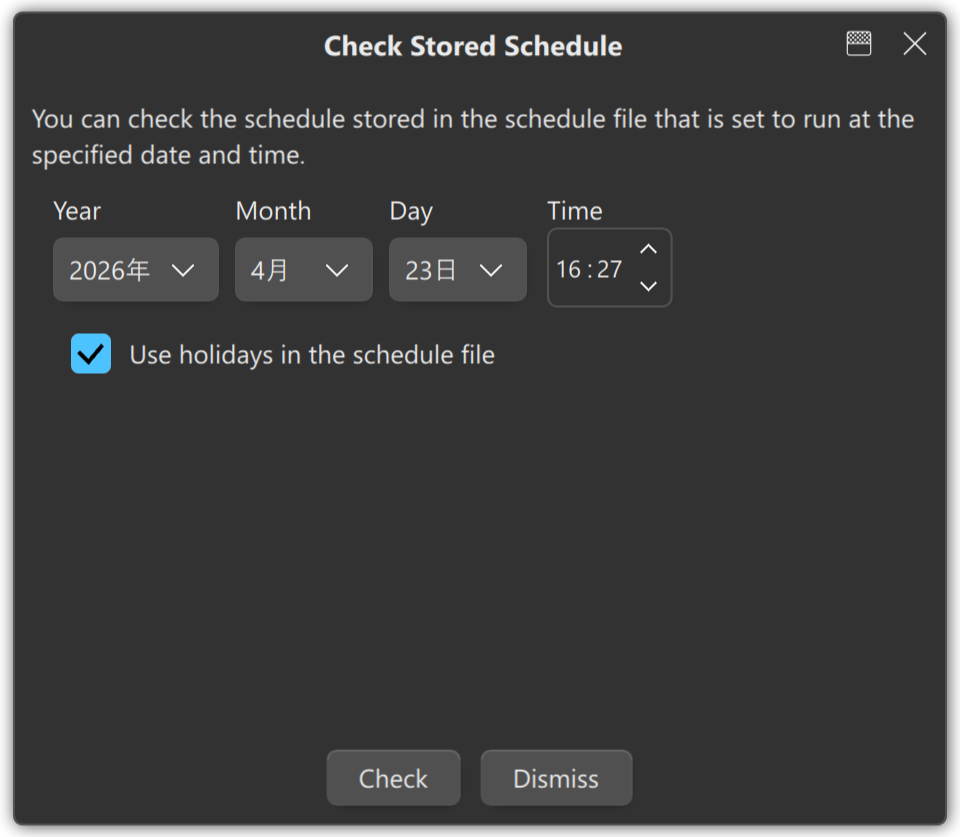
Specify the date and time you want to check, then click the Check button.
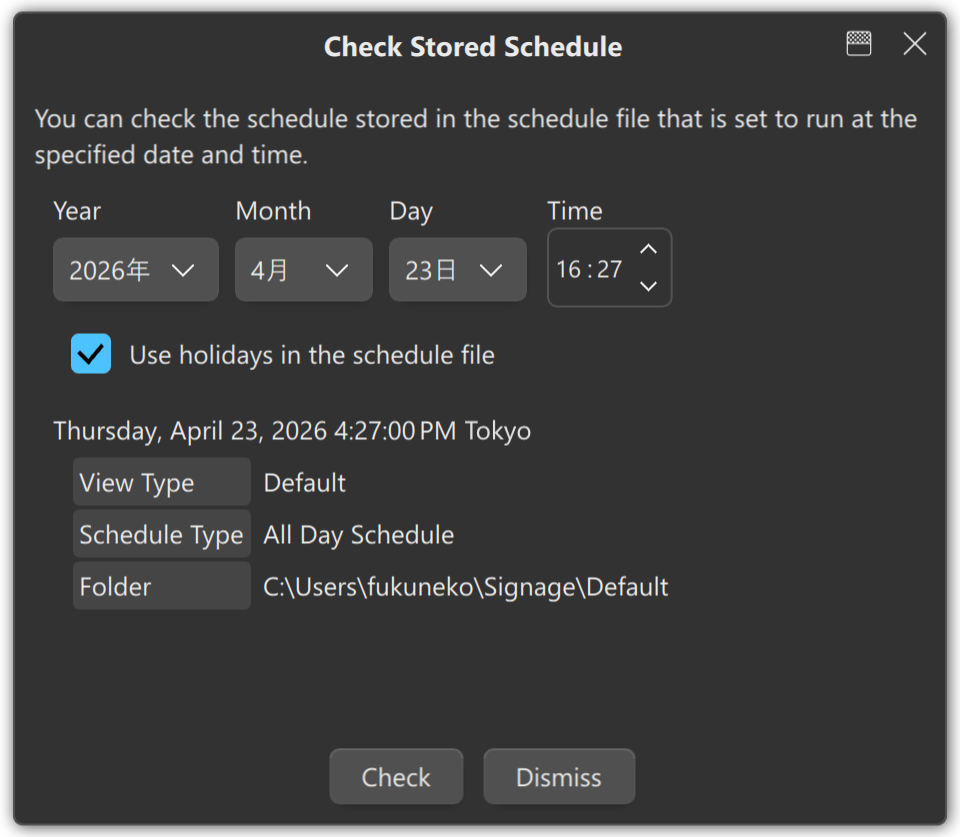
As shown in Figure 2, the schedule that will run at the specified date and time is displayed. In this example, the All Day Schedule in the Default view is confirmed to be active.
Important
If Use holidays in the schedule file is enabled, the holiday data stored in the schedule file will be referenced.
If it is disabled, the holiday data loaded by SmartSignage Scheduler will be used instead.