SmartSignage Scheduler

scheduler-icon SmartSignage Scheduler

SmartSignage Scheduler is a dedicated application for using the scheduling features of SmartSignage. You can create and edit schedules.
SmartSignage is required to display content.

SmartSignage
Loads schedules and automatically switches content folders according to the schedule. It cannot create or edit schedules.
SmartSignage Scheduler
Allows you to create and edit schedules. It cannot display content.

⚠️Notice on Operating Environment

Both SmartSignage Scheduler and SmartSignage must be used on the same OS. Folder paths and files differ between Windows and macOS, which will cause issues.
Files created on Windows must only be used on Windows.
Features of SmartSignage Scheduler

SmartSignage Scheduler provides the following features.

Schedule

Schedules can be created under “Date,” “Week,” “Holiday,” and “Default.” For details on priority rules, please refer to the Manual.

Time Schedule

You can specify a start time, end time, and folder. SmartSignage switches data folders according to this information.

Execution Items

You can specify the time to launch a specific executable file. In addition to arbitrary executables, you can choose “Restart,” “Shutdown,” or “Sleep.”

Multiple Schedules

You can open multiple windows and edit different schedule files simultaneously.

Theme Switching

You can switch the UI theme between “Dark” and “Light.” Selecting “System” will follow the OS settings.

Others

For additional features, please refer to the Manual.

Screenshot

"SmartSignage Scheduler" allows you to create and edit schedules for SmartSignage.

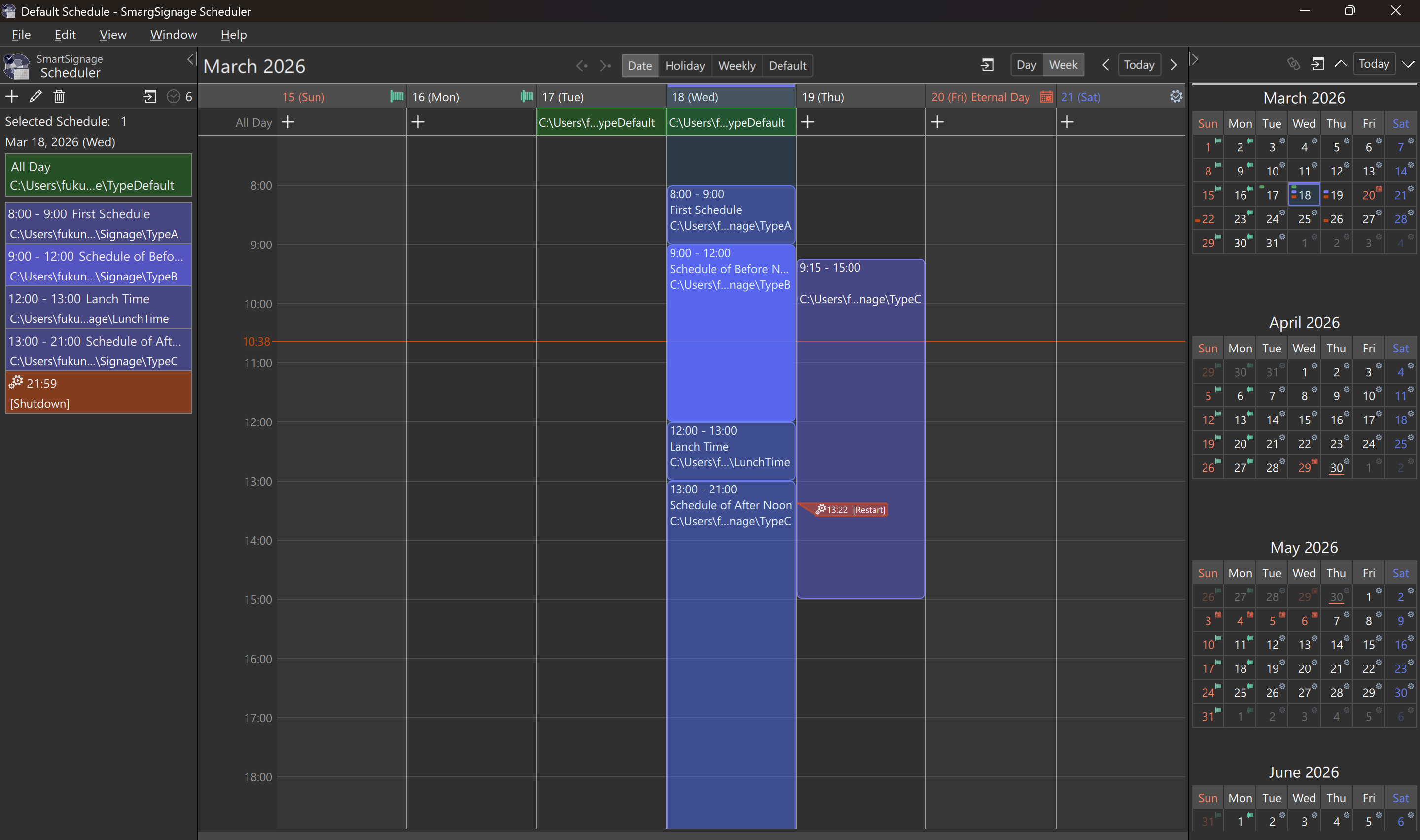
Main View

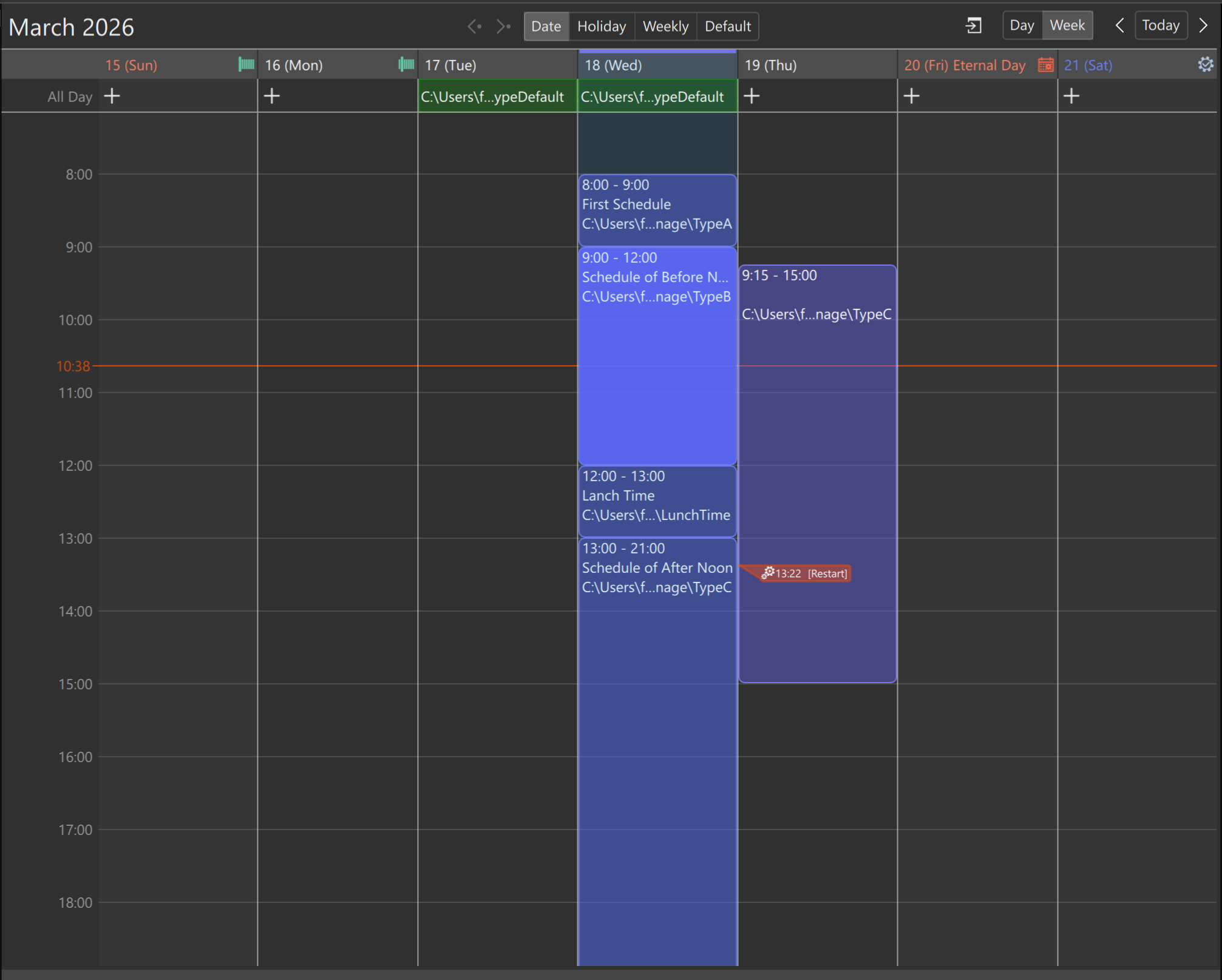
You can switch between "Date", "Holiday", "Day of Week", and "Default". Schedule items can be set for each time slot.

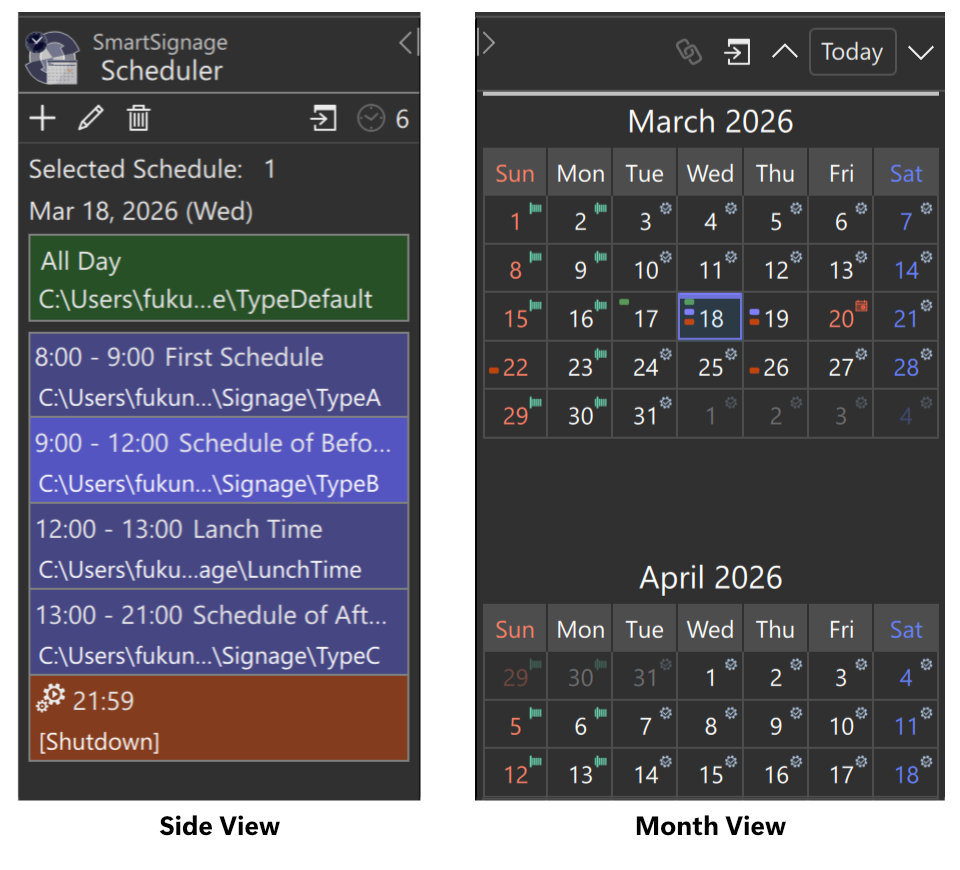
Side View and Monthly View

The Main View displays a list of schedule items configured for the selected date and other criteria.
The Monthly View shows a monthly calendar and allows switching the Main View based on the selected date.

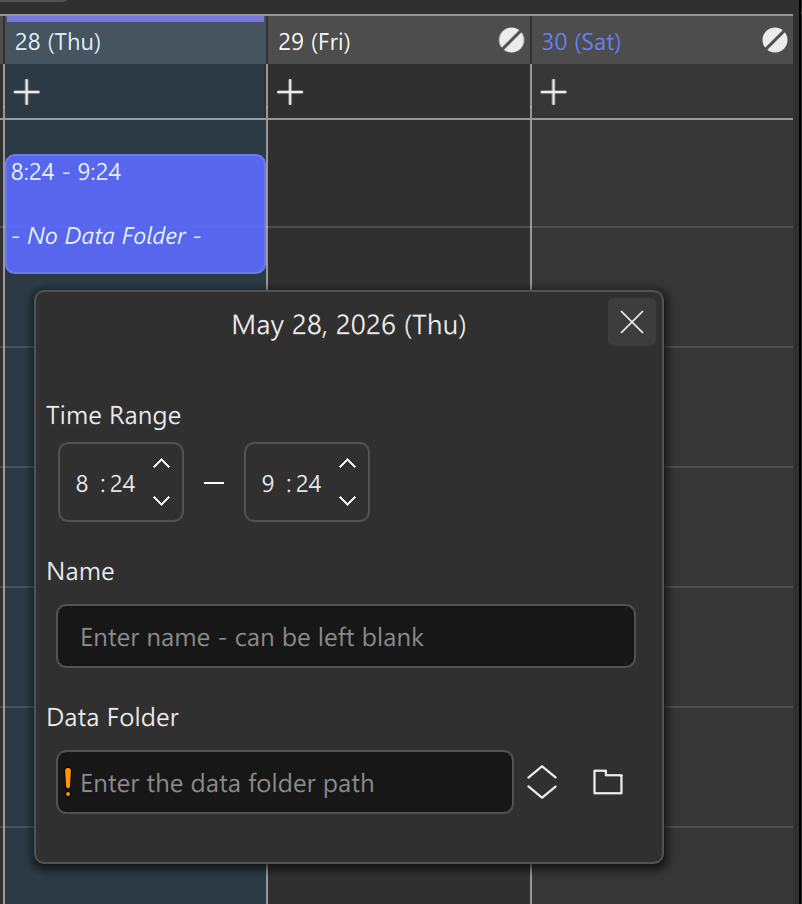
Timed Schedule

Specify the start and end times, as well as the data folder. SmartSignage displays the contents inside the specified data folder during the configured time period.

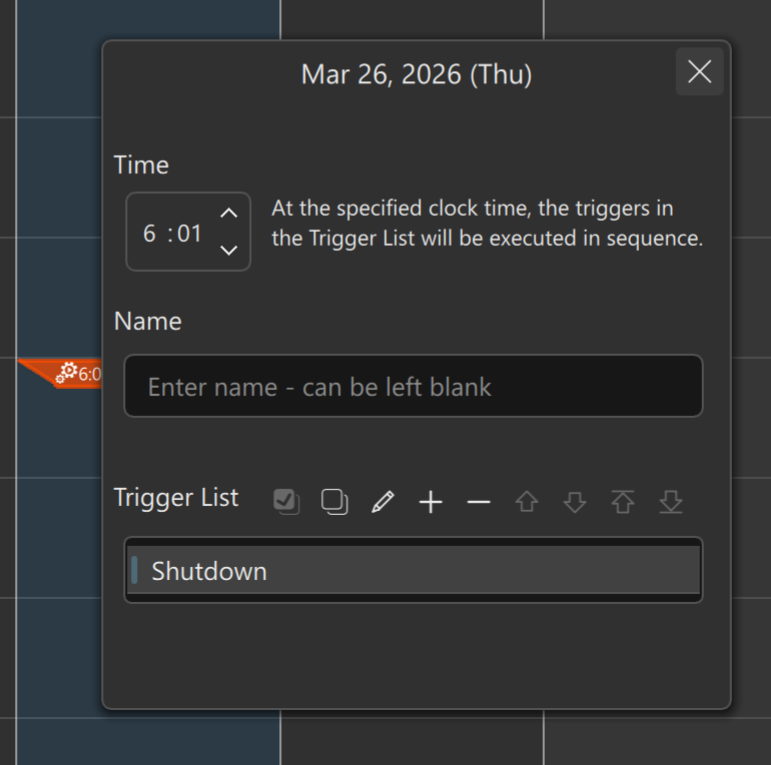
Triggers

Specify the time and triggers. Multiple triggers can be registered, and they will run sequentially at the specified time. Built‑in actions such as "Shutdown", "Restart", and "Sleep" are available for selection. You can also specify any executable file as a custom action.

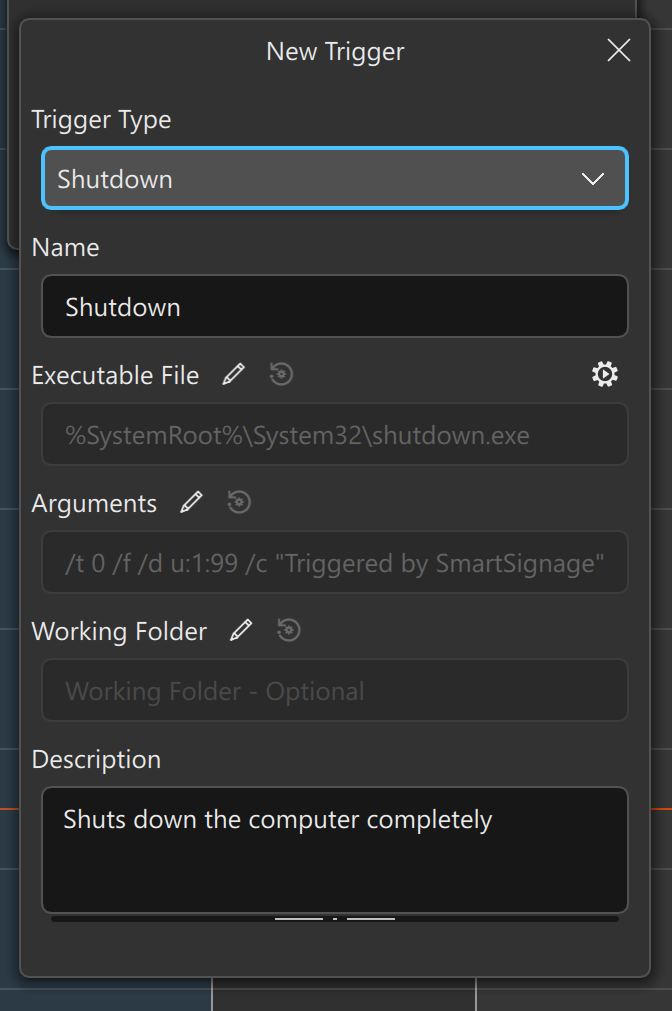
Creating Trigger

You can create new trigger. The executable path, arguments, working folder, and other parameters can be specified.

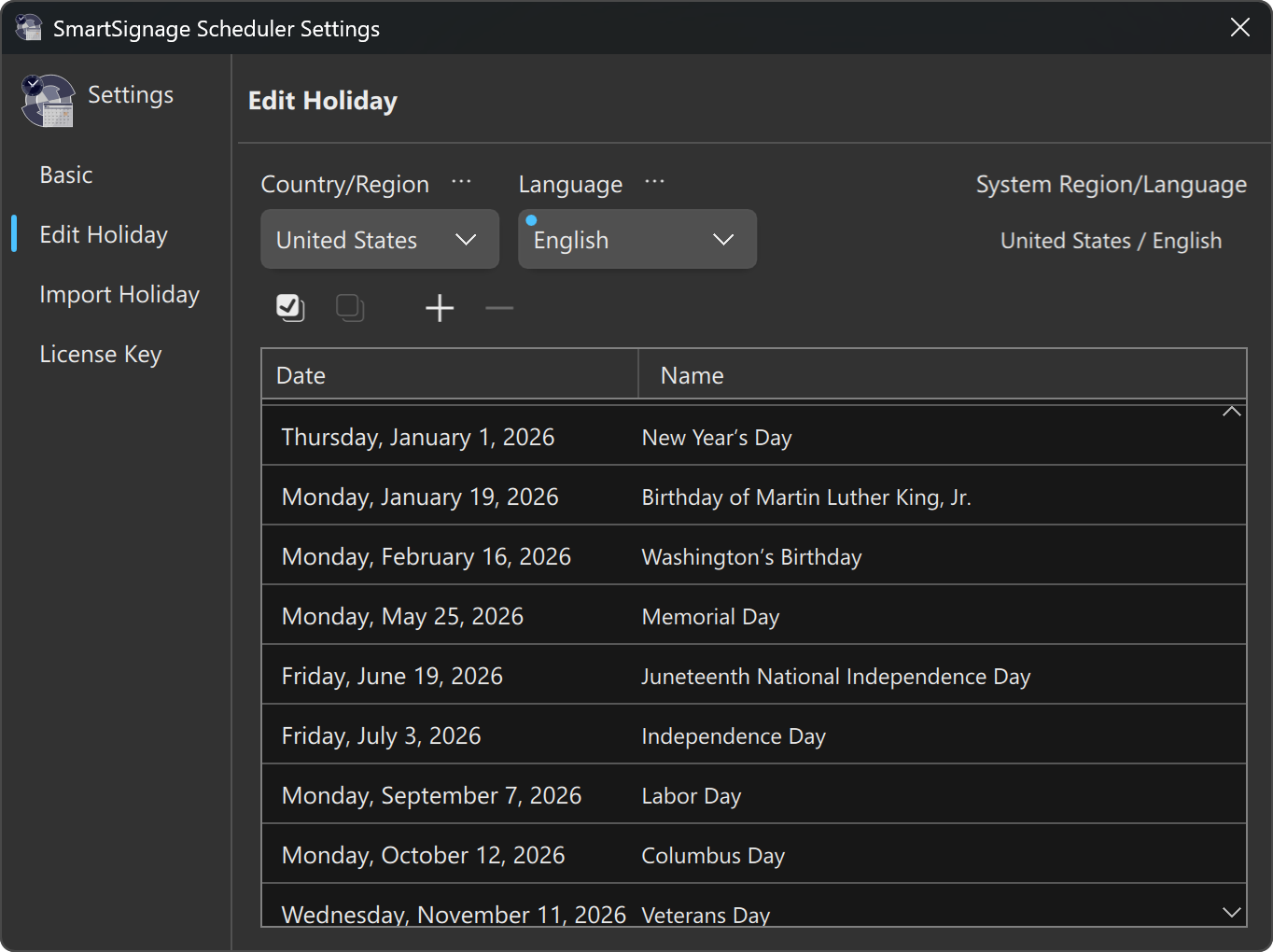
Holiday Settings

You can freely configure holidays.
For Japan (Japanese) and the United States (English), holidays can be automatically imported via the internet.

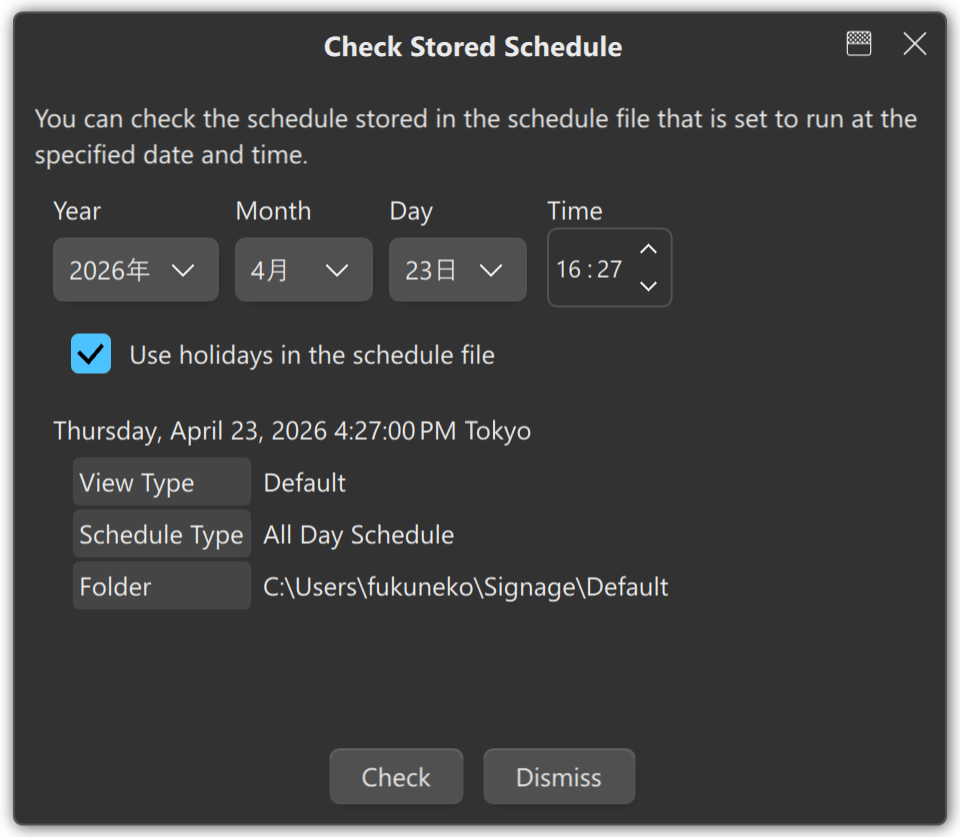
Schedule Verification

By specifying a date and time, you can check which schedule items will be executed at that moment.

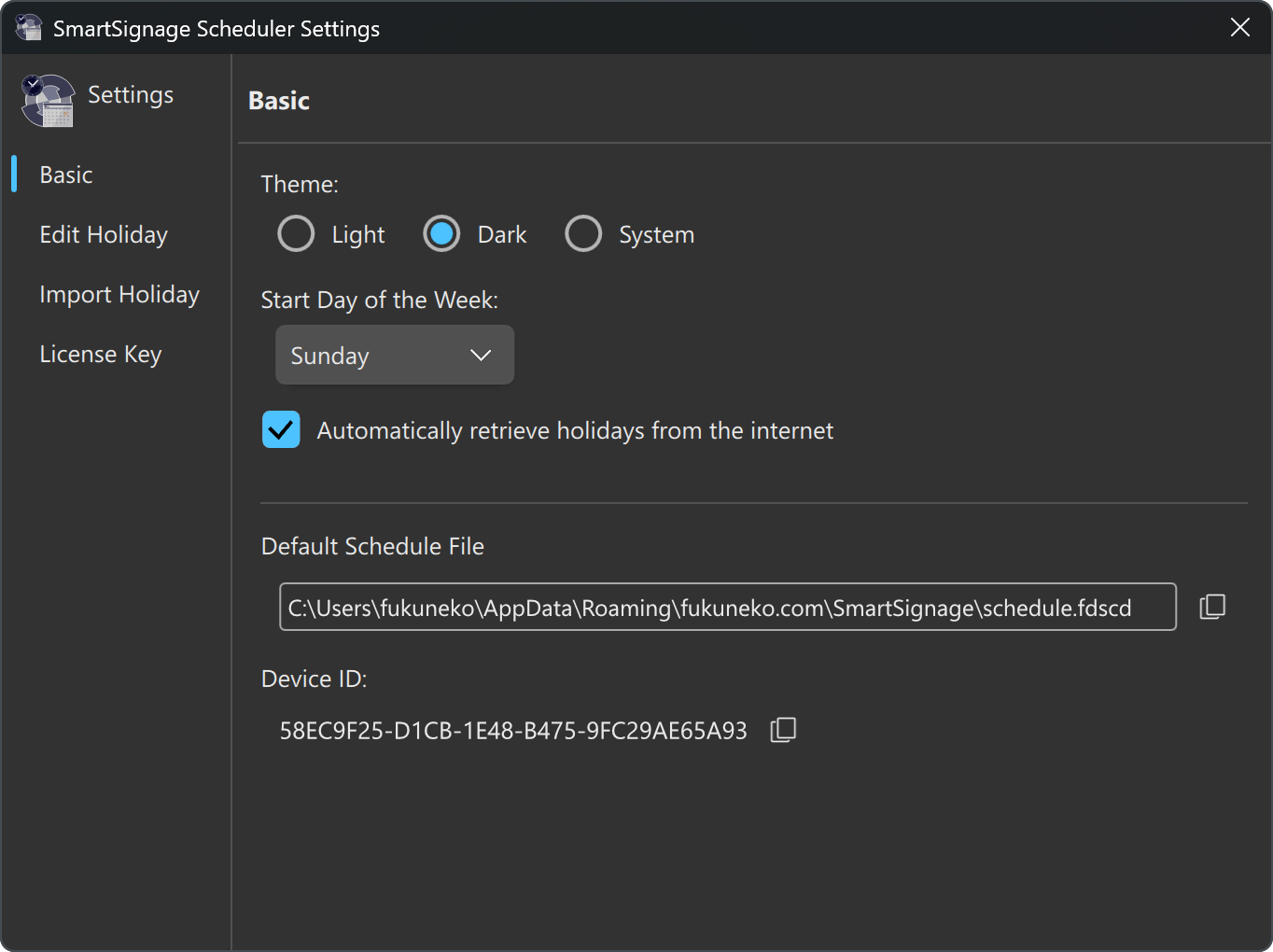
Basic Settings

In Basic Settings, you can switch between dark/light themes, change the starting day of the week, and configure other fundamental options.

⚠️Notice on Operating Environment

Both SmartSignage Scheduler and SmartSignage must be used on the same OS. Folder paths and files differ between Windows and macOS, which will cause issues.
Files created on Windows must only be used on Windows.
Try the Free Version First

If you do not want the periodic messages displayed by the SmartSignage Scheduler to appear, please purchase a license key.

Free Download Purchase License Key