SmartSignage is digital signage software that can automatically switch and display images, videos, PDFs, and web content.
First released as free software in April 2011, SmartSignage gained strong support from many users who tried the free download※1. At the same time, we received numerous requests for a “full product version,” leading to the release of SmartSignage 1.1 in February 2013.
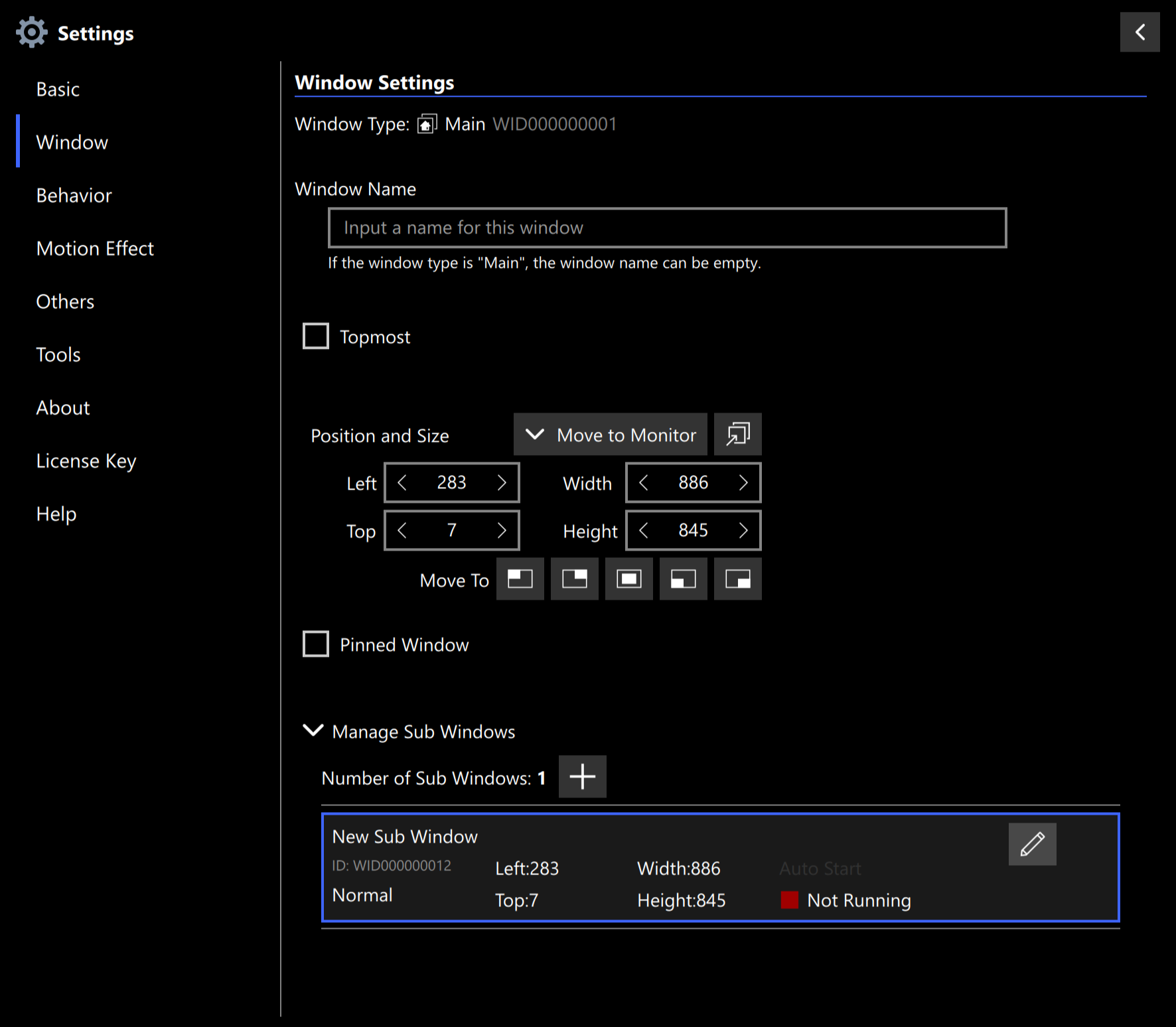
Starting from version 2.6, SmartSignage supports multiple window displays※2, allowing different content to be shown on each screen in a multi‑monitor environment.
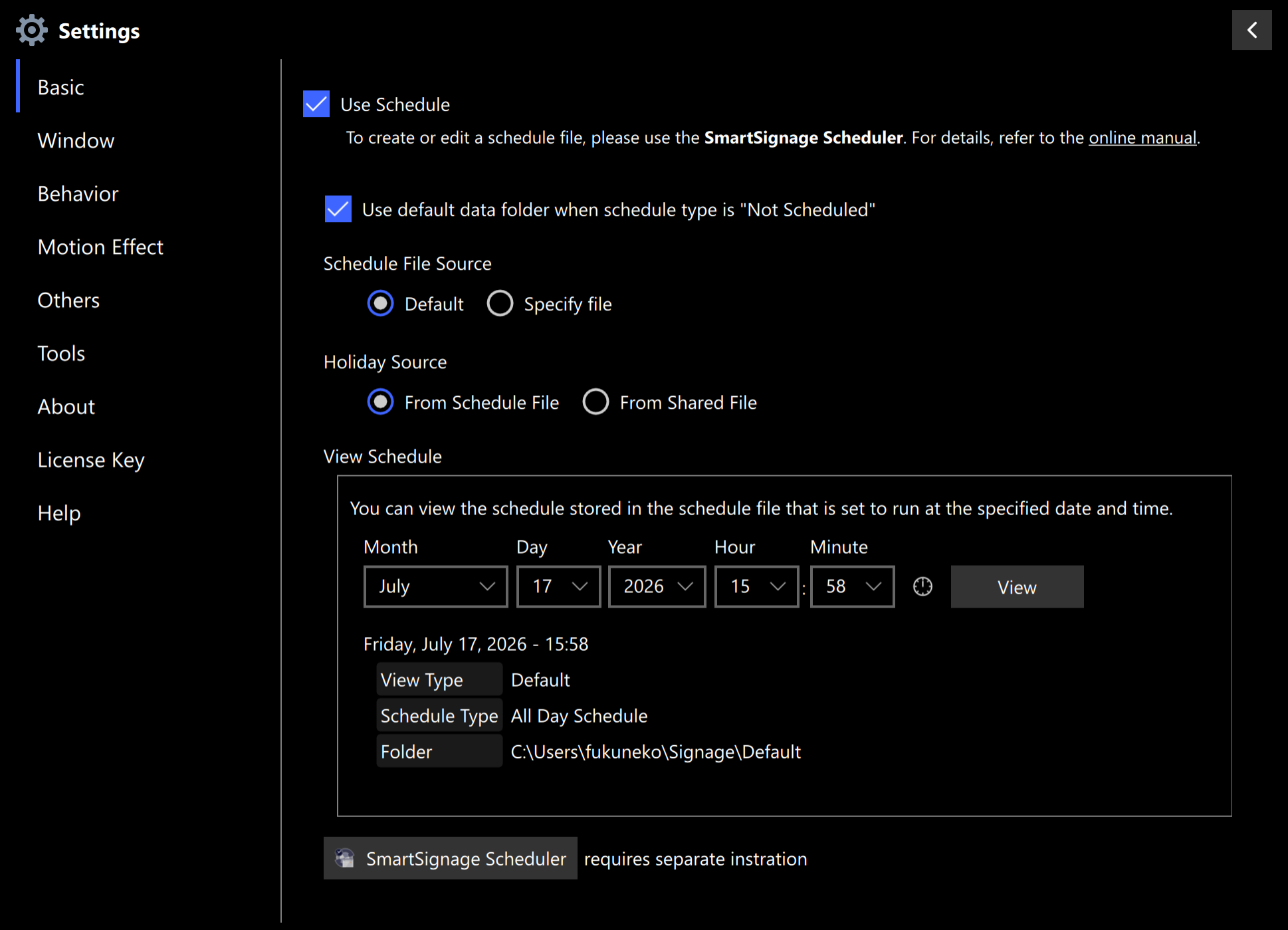
The latest version, 3.0, adds both logging and scheduling features.※3, ※4
In addition, the SmartSignage Scheduler application is now available for creating and editing schedules.
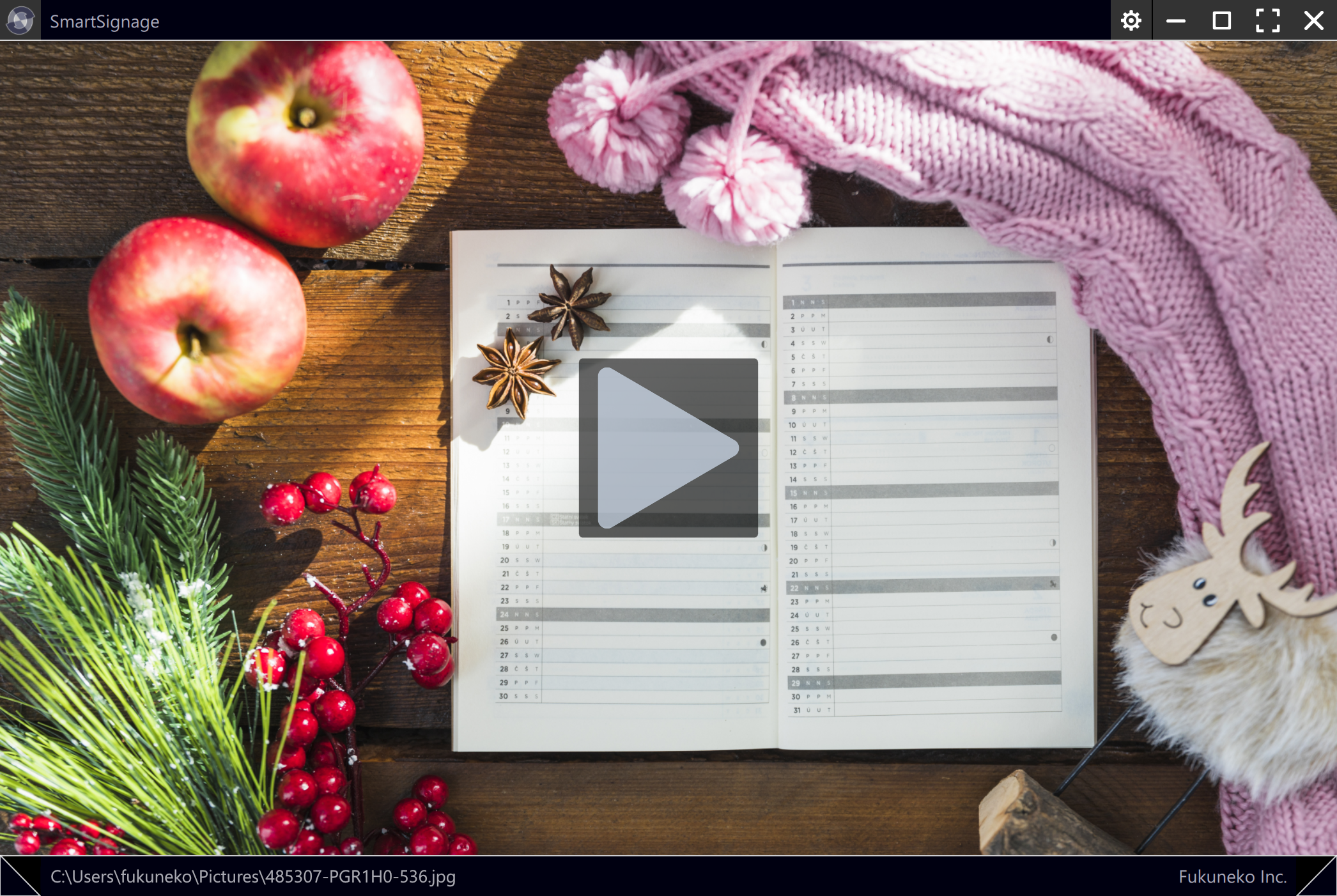
※1 In the free version of SmartSignage, the product name and URL are displayed in the upper-left and lower-right corners of the window, and a SmartSignage animation appears once every three minutes.
※2 In the free version, launching multiple windows displays a message in the center of the screen. A separate SmartSignage +Plus license key is required to hide this message.
※3 In the free version, using the scheduling feature displays a message in the center of the screen. A separate SmartSignage +Plus license key is required to hide this message.
※4 To create or edit schedules, you must use the separate SmartSignage Scheduler application.
Starting with Ver. 2.9.5, SmartSignage requires an internet connection to register a license key. If you need to register a license key on a PC that is not connected to the internet, you must generate a “registration request file” and send it from another PC. For details, refer to the manual: Registering and Unregistering a License Key.
SmartSignage works simply by specifying a folder that contains your content (images, videos, PDFs, or URL files for web pages).
Below are the main features you can configure.
The window frame automatically hides when no operation is performed for a certain period.
You can configure whether the mouse pointer is shown or hidden.
The display order can be set to either “File Name” or “Random.”
(Starting from Ver. 2.8.1, displaying subfolders is supported.)
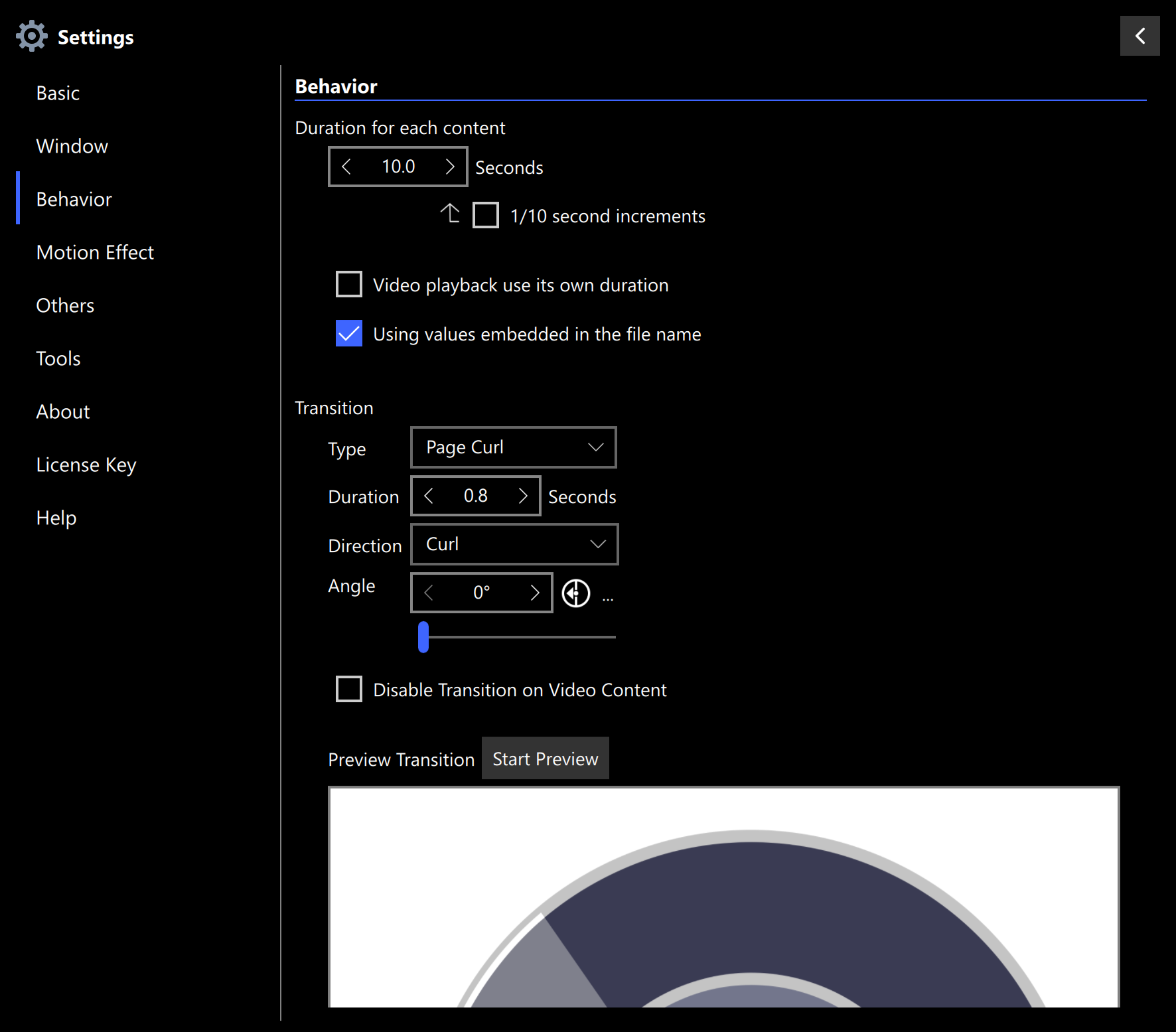
You can apply visual effects (transitions) when switching content.
There are nine transition types, and you can configure both duration and direction.
(The “Page Curl” transition was added in Ver. 2.9.5.)
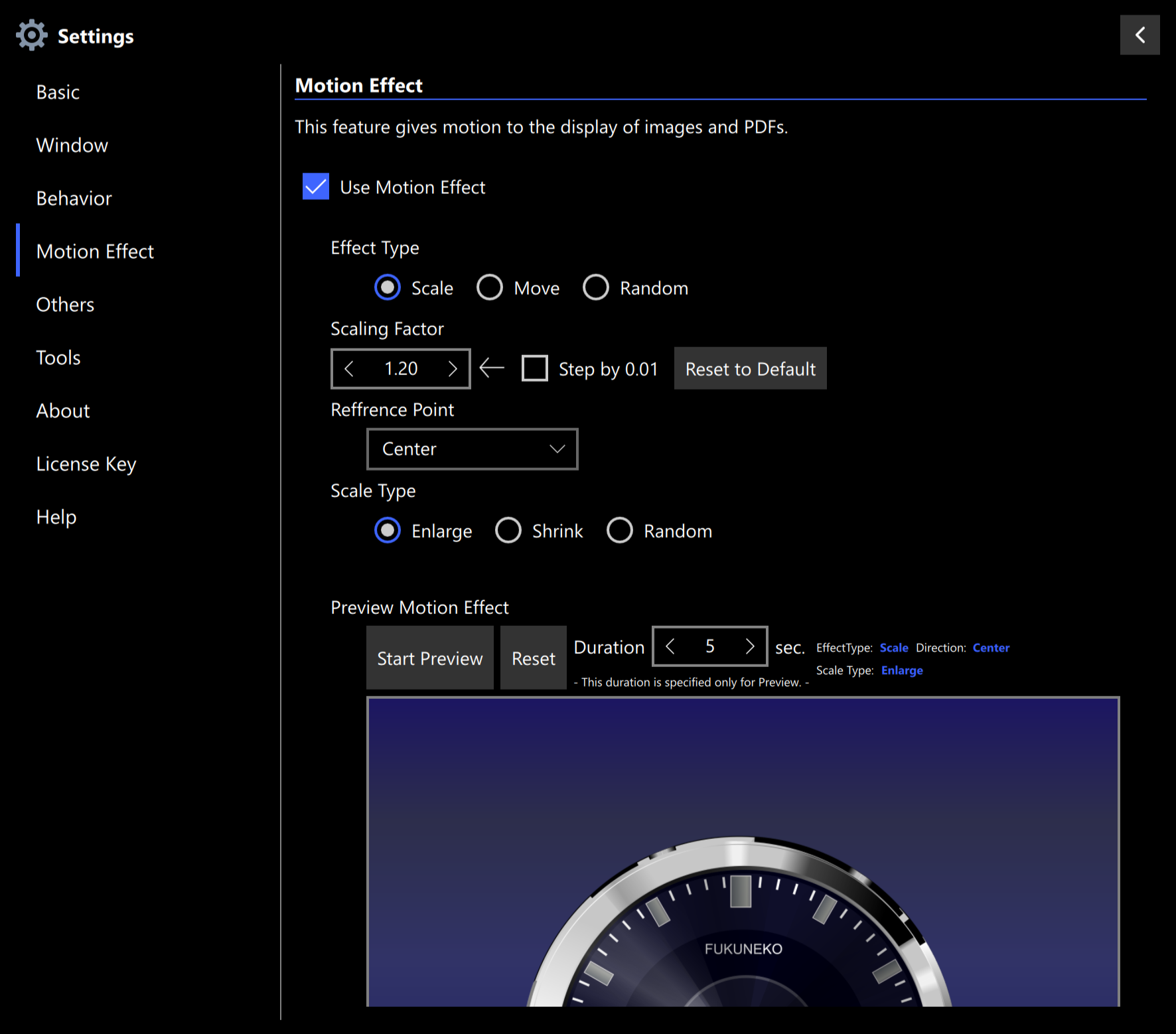
Motion effects can be applied to images and PDF content to give them a sense of movement.
Available effect types include “Zoom,” “Move,” and “Random.”
You can also configure the center point and movement direction.
SmartSignage automatically detects and reflects added or deleted files in the specified folder.
For files that are difficult to modify (such as videos), automatic updates can be enabled by adding a special extension (._fdu).
You can specify the duration before switching content.
(From Ver. 2.8, duration can be set per file.)
Videos can also be configured to switch only after playback finishes.
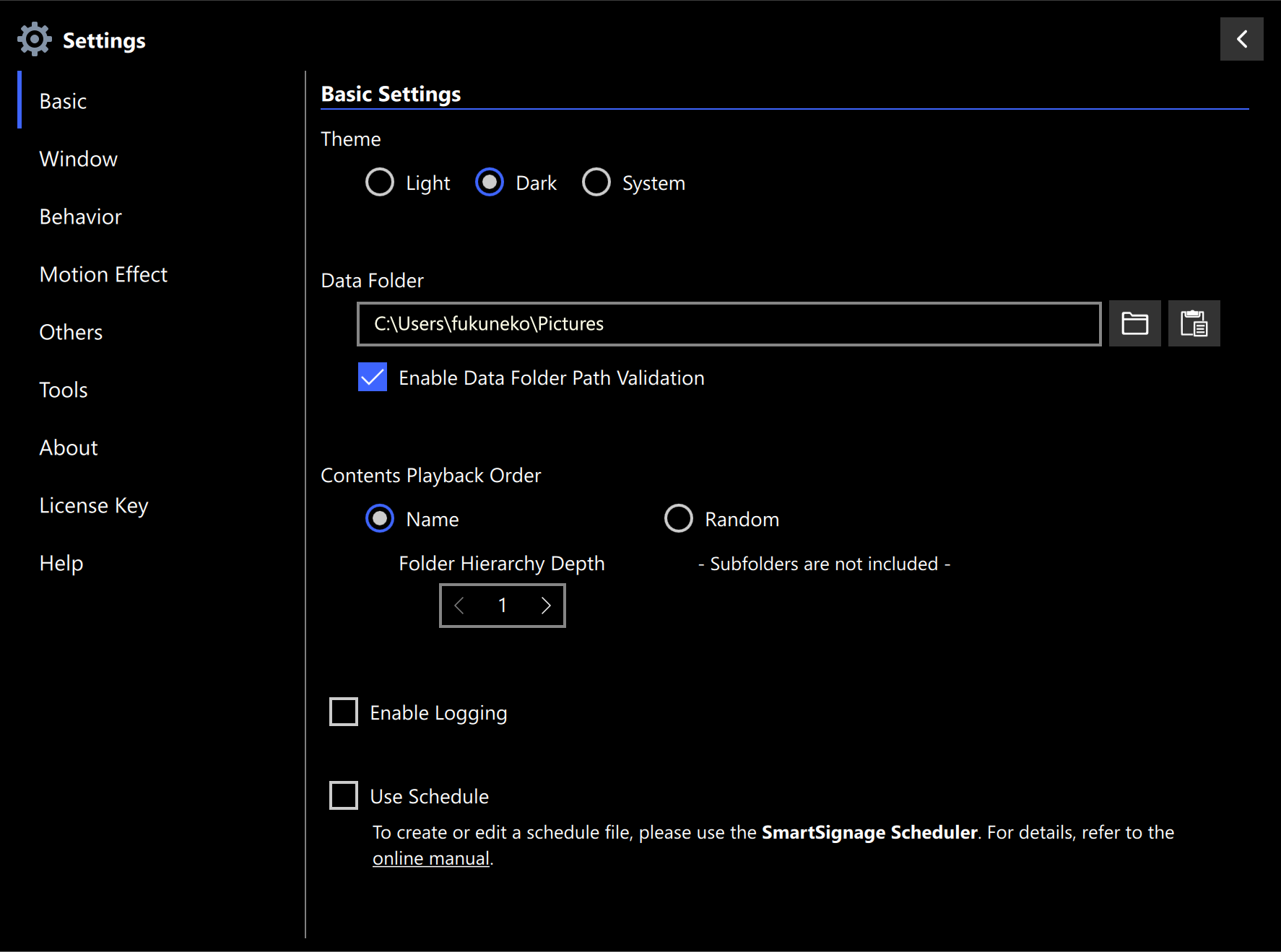
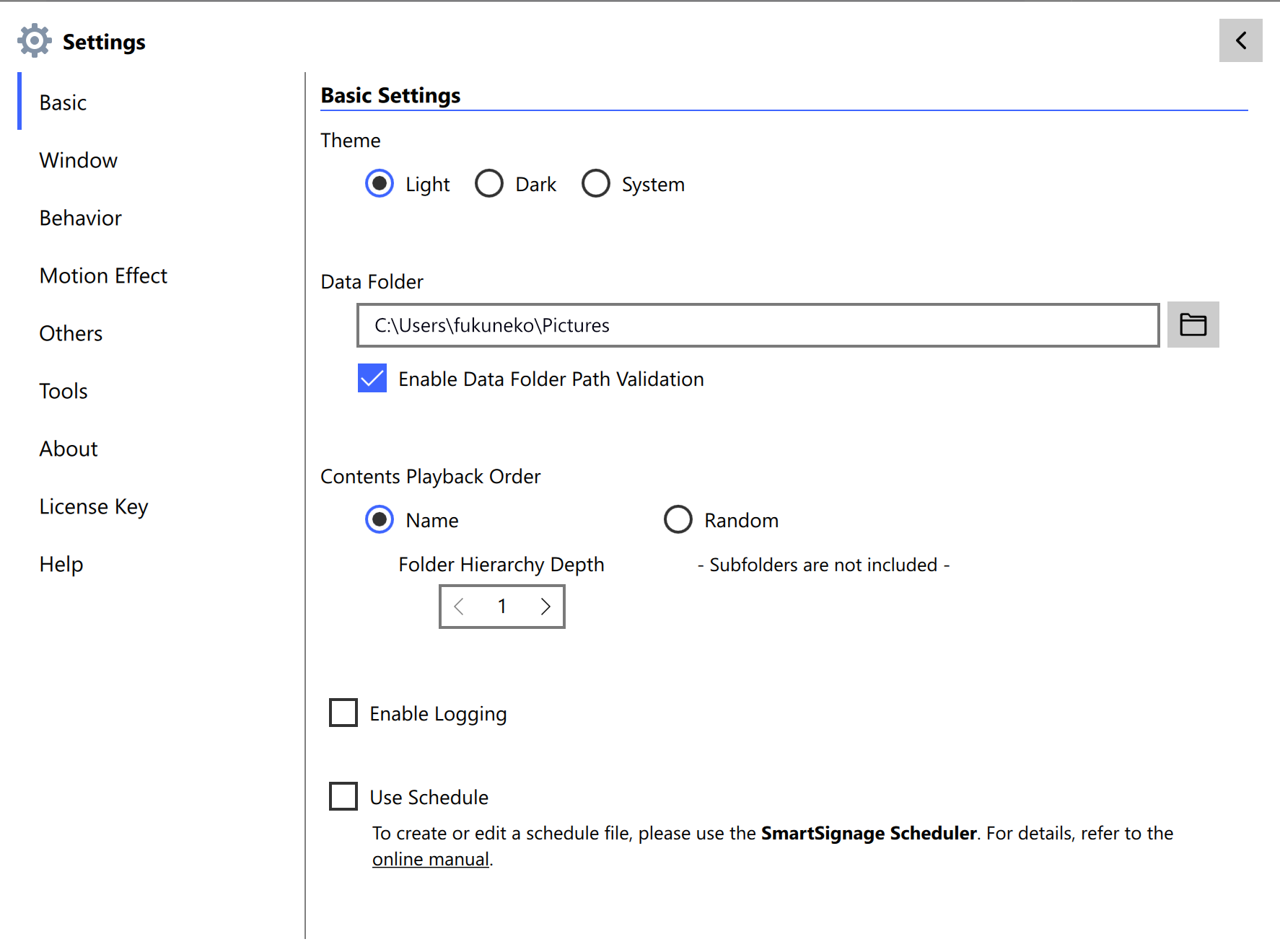
You can switch the UI display theme between “Dark” and “Light.”
By writing settings inside a URL file, you can control web display behavior such as zooming, auto-login, and executing custom JavaScript.
You can display multiple windows simultaneously.
Each window can have its own configuration, allowing you to connect multiple monitors to a single PC and show different content on each.
Supported since Ver. 2.6.
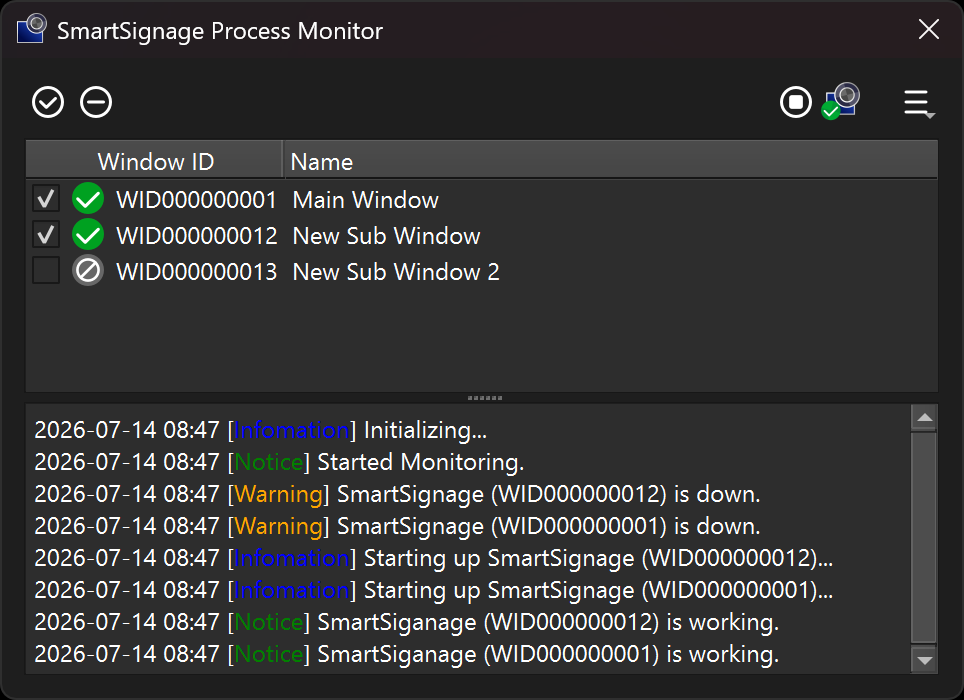
By using the SmartSignage Process Monitor, SmartSignage can automatically restart and recover even if it terminates unexpectedly.
This enables advanced operation such as kiosk terminal usage.
By loading a schedule file, the system can automatically switch data folders based on dates, holidays, days of the week, and time.
This feature is available in Ver. 3.0 and later.
Creating or editing a schedule requires a separate SmartSignage Scheduler application.
When logging is enabled, the system can record operational status information to a log file.
This feature is available in Ver. 3.0 and later.
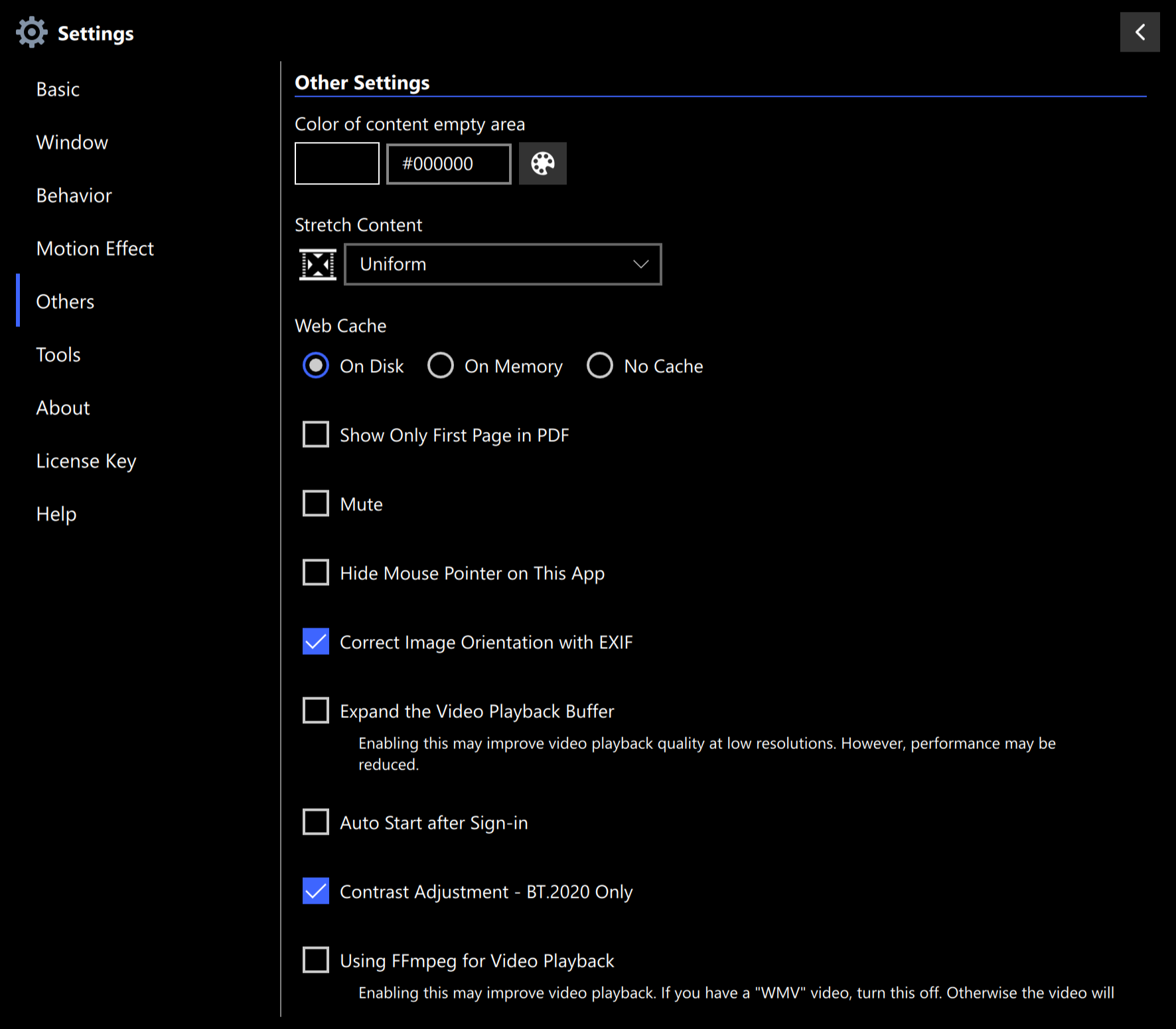
Additional features include video mute, always-on-top display, improved video playback quality, auto-start (Windows only), and automatic image rotation correction via EXIF.
SmartSignage provides a simple and streamlined digital signage experience.
When clicked, the control bar for operations appears at the top and bottom.
The control bar hides automatically when no operation is performed for a certain period.
Starting from Version 2.1, SmartSignage supports displaying web pages.
By adding settings to a URL file, you can enable zooming, auto-login, and more.
Auto-login is supported from Version 2.3.
You can select the UI display theme.
Configure display switching time and transition effects.
Configure motion effects that add movement to still images and PDFs.
This feature is available from Version 2.5.
Configure options such as muting videos or web pages, always-on-top display, auto-start (Windows only), and expanding the video playback buffer.
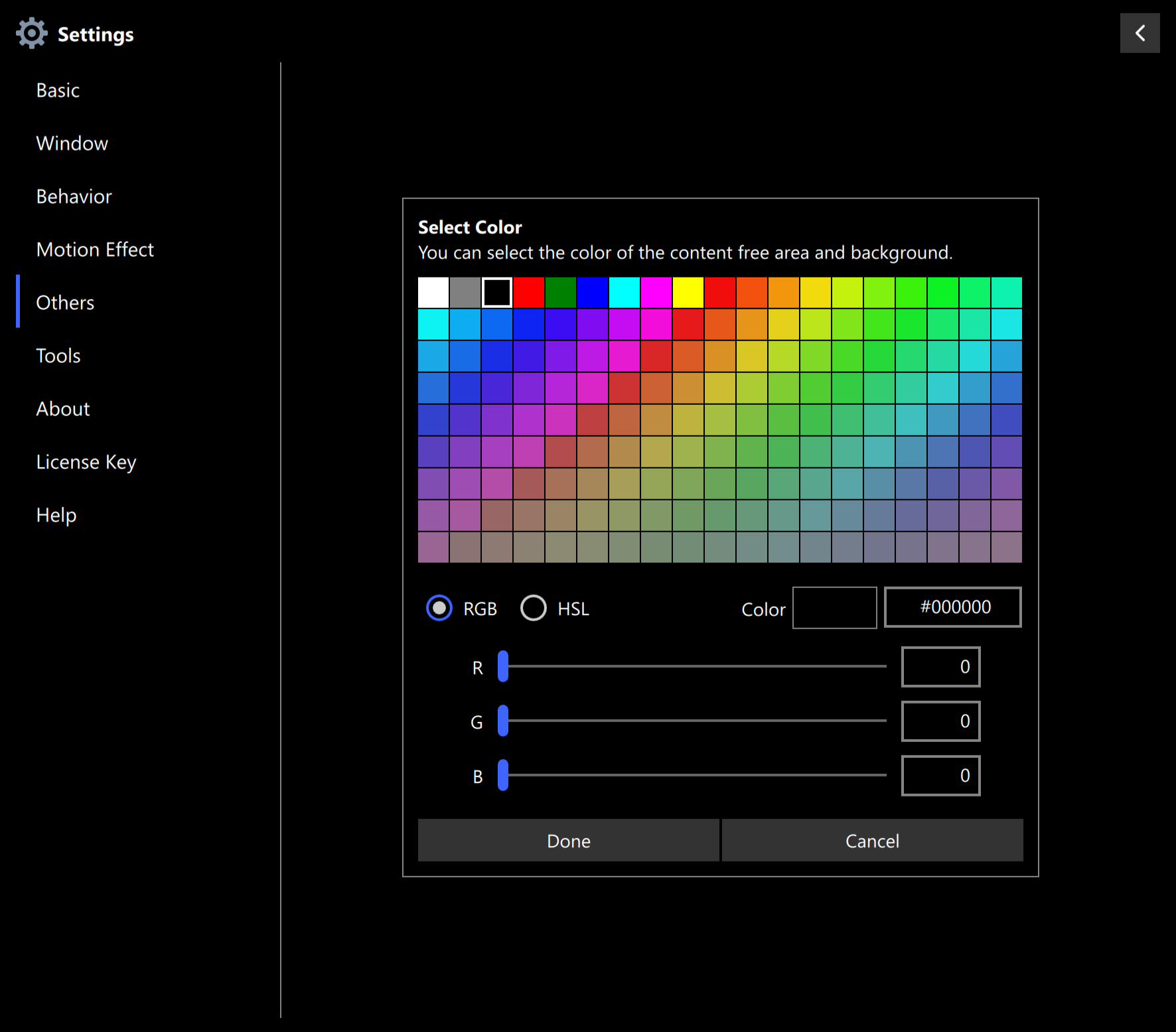
Select the color for areas that appear when the content’s aspect ratio does not match the window.
In the main window, you can create sub-windows and configure their position and size.
This feature is available from Version 2.6.
When the schedule feature is enabled, the system loads the schedule file and automatically switches the data folder.
This feature is available in version 3.0 and later.
To create or edit a schedule file, a separate SmartSignage Scheduler application is required.
The Process Monitor watches SmartSignage’s operation and automatically restarts it if it stops.
Even in the event of an unexpected termination, SmartSignage can recover quickly.
This feature is available from Version 2.9.
SmartSignage allows you to use all features in the free version; however, certain on‑screen notices will be displayed.
To remove these notices, you must purchase and register a separate license key.
“SmartSignage Scheduler” is a separate application.
License keys for “SmartSignage” or “SmartSignage +Plus” cannot be used with “SmartSignage Scheduler.”
SmartSignage’s free version shows the following items on screen.
By registering a license key, you can hide these displays. SmartSignage offers two types of license keys:
> SmartSignage
> SmartSignage +Plus ... Ver. 2.6 and later
| SmartSignage | SmartSignage +Plus | |
|---|---|---|
1. Window upper-left — “SmartSignage” text |
✔ | ✔ |
2. Window lower-right — “https://fukuneko.com” text |
✔ | ✔ |
3. SmartSignage animation every 3 minutes (10 seconds) |
✔ | ✔ |
4. Message when multiple windows are used |
✕ | ✔ |
5. Message when scheduling is enabled |
✕ | ✔ |
✔...removed ✕...not removed
Starting with Ver. 2.9.5, SmartSignage requires an internet connection to register a license key. If you need to register a license key on a PC that is not connected to the internet, you must generate a “registration request file” and send it from another PC. For details, refer to the manual: Registering and Unregistering a License Key.
Both SmartSignage Scheduler and SmartSignage must be used on the same OS. Folder paths and files differ between Windows and macOS, which will cause issues.
Files created on Windows must only be used on Windows.
If you prefer not to display the SmartSignage text or the animation shown every three minutes, please purchase a license key.
Free Download Purchase License Key